Logo
  • Getting Started
  • Categories
    • Initial Setting
    • Registration
    • Expenses
    • Sale
    • Order
    • Daily Closing
    • Accounting
    • COO (Customer Online Order)
    • CTO (Customer Tablet Order)
    • Printer
    • Monthly Closing
    • Other Uploads
    • Customer Display
    • Seats Settings
    • Features of POS App
  • Contact Us
  • English jpnflg
    engflg English engflg 日本語 engflg नेपाली
  1. Categories
  2. COO (Customer Online Order)
  3. COO Menu and Category
  4. How to delete COO sub menu

How to delete COO sub menu


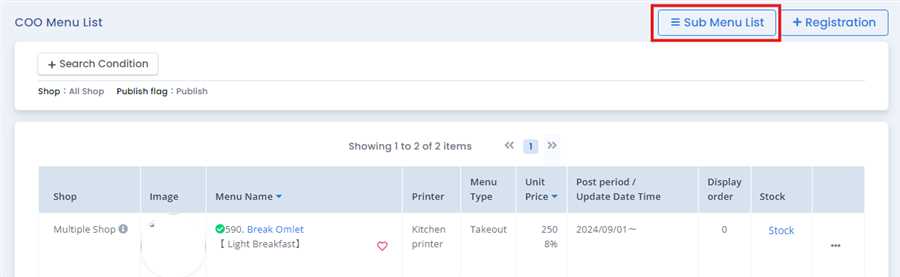
Click sub menu list button

First, click on sub menu list button which open the sub menu list which is present in COO menu list.
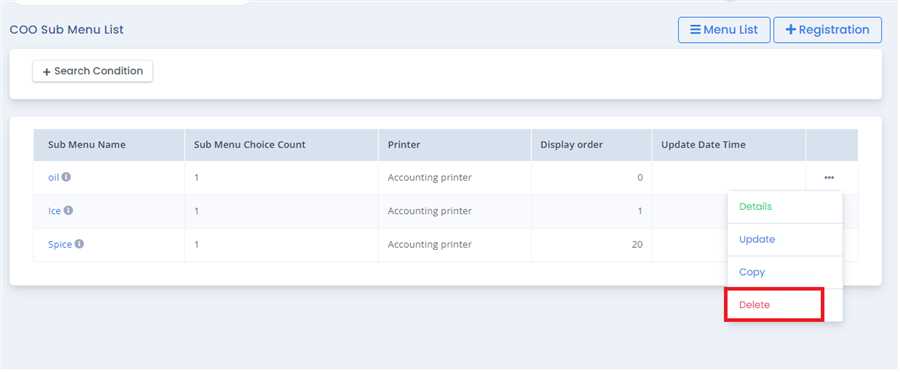
Click delete tab

After opening COO sub menu list open. Press delete tab after pressing (...) button of the sub menu you want to delete.
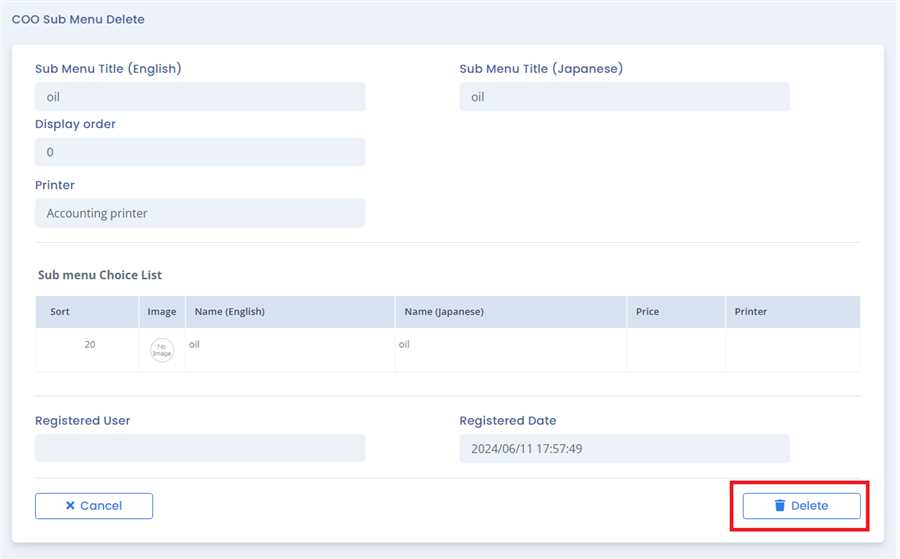
Click delete button

Detailed view page opens up which contains the detail of that sub menu. User can delete the sub menu after pressing delete button .

Categories
Initial Setting
Registration
Expenses
Sale
Order
Daily Closing
Accounting
COO (Customer Online Order)
CTO (Customer Tablet Order)
Printer
Monthly Closing
Other Uploads
Customer Display
Seats Settings
Features of POS App
FAQ

Namaste International LLC

ナマステ・インターナショナル合同会社

Products
  • POS (Point On Sale)
    • Sakura POS
    • Sakura Reji
    • Himal POS
  • Order Management System
  • CTO (Customer Table Order)
  • Ryoriten (Customer Online Order)
Information
  • FAQ
  • Getting Started
  • Inquiry
  • Privacy Policy
Contact Us
  • 2-21-22 Machiya, Arakawa-ku, Tokyo 116-0001
  • (+81) 080 4080 2044
  • jpnflg English
    engflg English engflg 日本語 engflg नेपाली
© 2025 Namaste International LLC. All Right Reserved.
×