Getting Started
Categories
Initial Setting
Registration
Expenses
Sale
Order
Daily Closing
Accounting
COO (Customer Online Order)
CTO (Customer Tablet Order)
Printer
Monthly Closing
Other Uploads
Customer Display
Seats Settings
Features of POS App
Contact Us
English
English
日本語
नेपाली
Categories
Registration
Party Course
Steps to Delete Party course
Steps to Delete Party course
Initial Stage: Delete Button Active (Clickable)
Before the party course is active
or still in use
, the
Delete
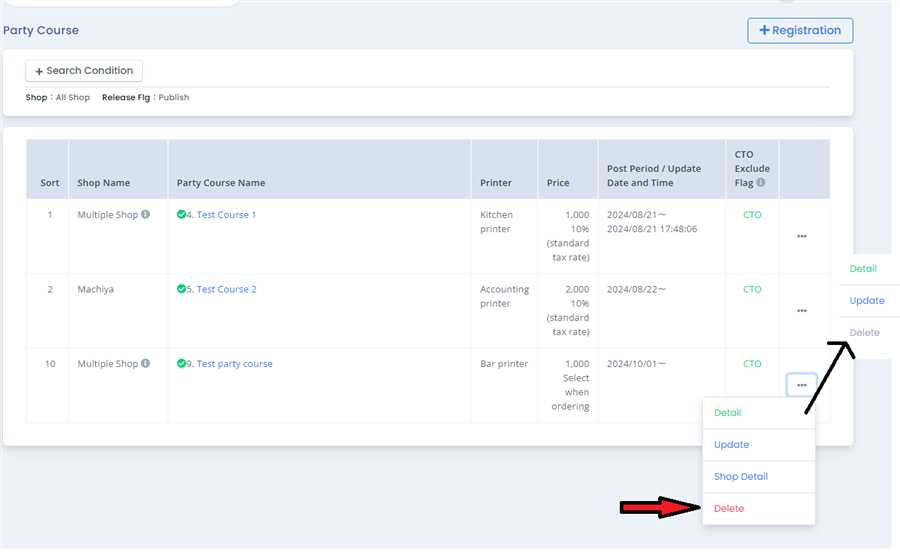
button (three dots menu in the first image) next to each party course remains
active
and clickable.
At this point, since the party course has not been active(e.g., no customers has currently used party course), it is possible to delete it.
Party Course Usage : Delete button is (Unclickable)
Once the party course is used
in any active order process (e.g.party course is in use/active):
The system automatically
D
isables
the
Delete
button for that party course, making it unclickable.
This means the party course can no longer be deleted since it is now associated with historical data.
Process for Handling Delete Button State
Before Usage (Active Delete Button)
:
The
Delete
option is available when the party course has no dependent data or is not tied to any process. You can click the
Delete
button to remove the party course from the system.
After Usage (Disabled Delete Button)
:
Once the party course has been used in a process, the
Delete
button becomes
disabled
. This ensures that the party course's historical data is preserved for business reporting or audit purposes.
The button is visually altered (likely grayed out or unclickable) to indicate that deletion is no longer possible.
While the Delete Button Active (Clickable)
Before the party course is used
in any business transaction, the
Delete
button next to each party course remains
active
and clickable so to delete it you can click that button to delete the party course in case of mistake while creating before usages.
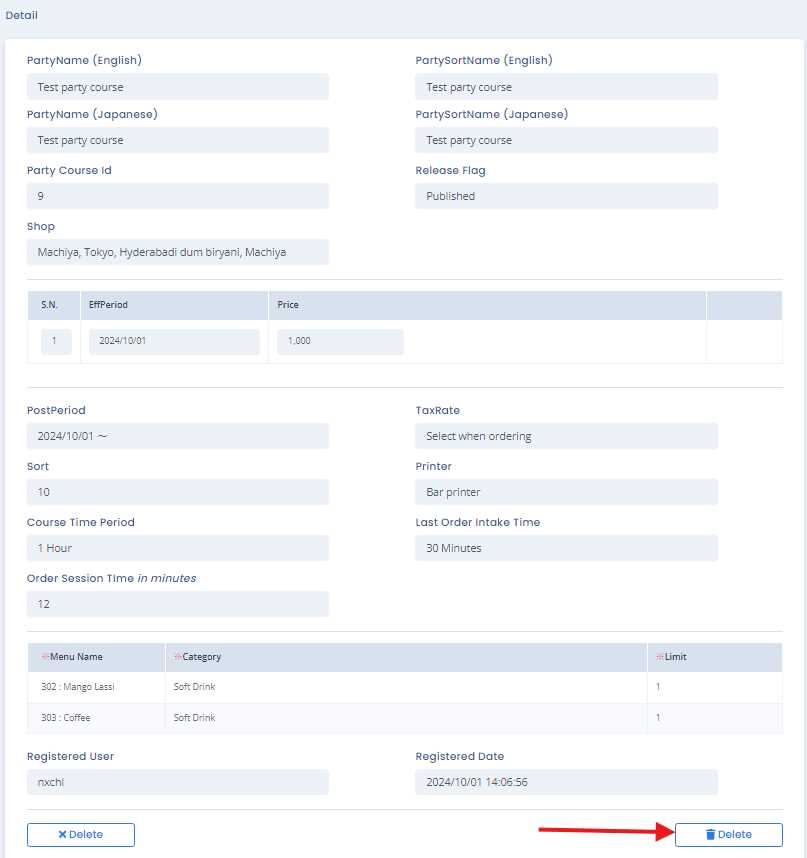
At this point, after clicking delete button the deleted form is open
That form will shows the name of partry course and relative information
Click on the Delete Button on the Right Lower corner. (if you want to cancel the delete you can perfromed by clicking on cancel button )
Why the Delete button is Active:
The
Delete
button is active (clickable) when the party course
has not been used
yet. This means the party course can be deleted because no customers or transactions have been linked to it.
Why the Delete Button is Inactive:
The
Delete
button becomes inactive (unclickable) when the party course
has been used
in your business. Once a party course is linked to any customer or transaction, it cannot be deleted to keep your records complete and accurate.
Categories
Initial Setting
Registration
Expenses
Sale
Order
Daily Closing
Accounting
COO (Customer Online Order)
CTO (Customer Tablet Order)
Printer
Monthly Closing
Other Uploads
Customer Display
Seats Settings
Features of POS App
×