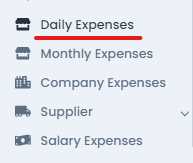
Click on "Daily Expenses" in the navigation panel.
Click on “Registration” button

Shop Selection (Only for Company Authority):
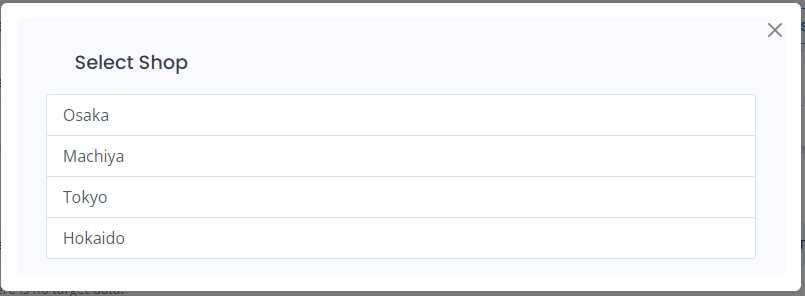
Select the shop where you want to add expenses.
The following form will appear. Please fill it out accordingly:
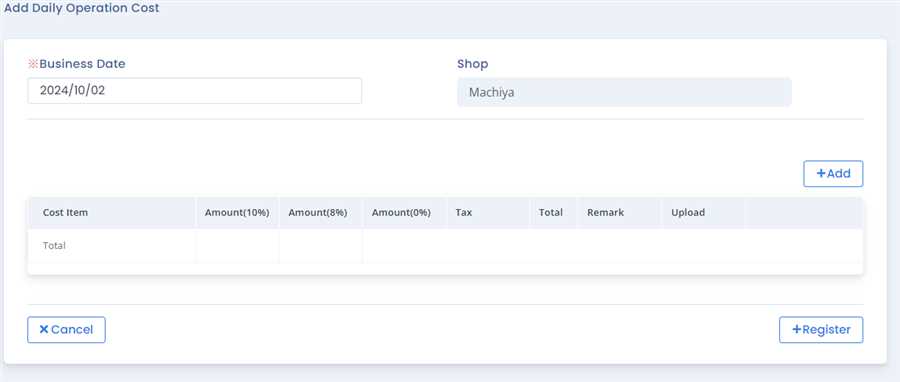
1. Business Date
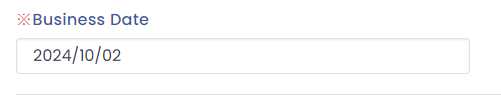
Select the date labeled "Business Date" on which the expenses need to be recorded.
2. Add Items
Click the "Add" button. The following form will appear:
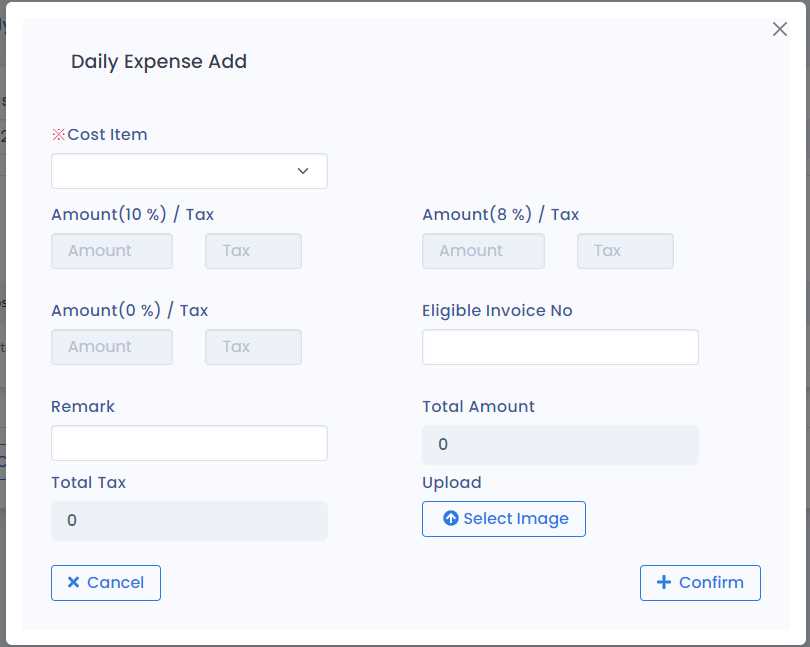
a) Cost Item
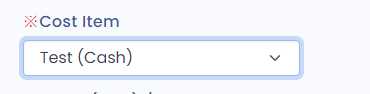
Select the item(Test) from the dropdown that you want to add to the expense
b) Amount
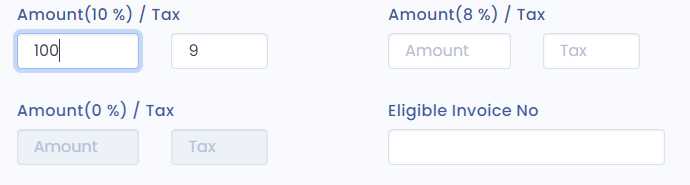
The amount field for all tax rates selected while creating the item will be enabled(10%, 8%), while other tax amounts remain disabled(0%).
The tax amount is automatically calculated based on the Tax status (i.e., Tax Included or Tax Excluded), Tax rate, and entered Amount.
You can manually adjust the calculated tax amount, but it can only be changed by ±1 of the calculated value. More than that may lead to unrealistic tax data.
c) Eligible Invoice No
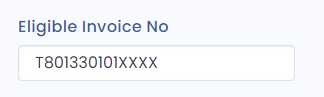
The eligible invoice number will be automatically set based on the selected cost item, but you can change it for the respective expense if needed.
d) Remark
Add any necessary remarks (optional).
e) Upload
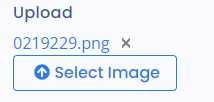
You can upload images of the bills here.
Click "Confirm" when done
3. Add More Items
Follow Step 2 to add more items.
4. Edit Item

You can also edit a previously added item by clicking the "Edit" button.
5. Register Expense
Click "Register" to finalize and register the expense.
