Steps to connect customer display
There are two parts to connect customer display to POS terminal they are:
1) Customer Display terminal side
2) POS terminal side
Customer Display Terminal
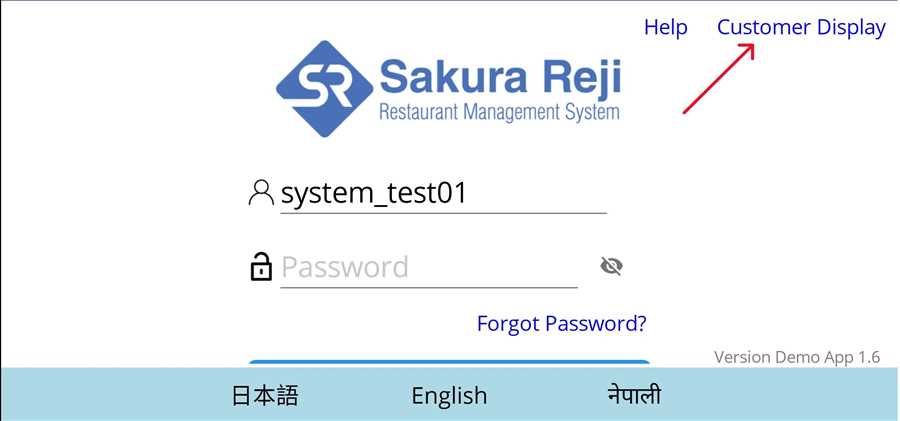
Firstly, to access the customer display terminal user needs to go to login page of the POS app. At top right, there is Customer Display section besides Help. Tap on Customer Display to open customer display terminal.
After pressing customer display a page opens up which shows the IP address of the device in the connected network(wifi).
Note: This is the IP address that should be matched/same while setting up the connection in POS terminal.
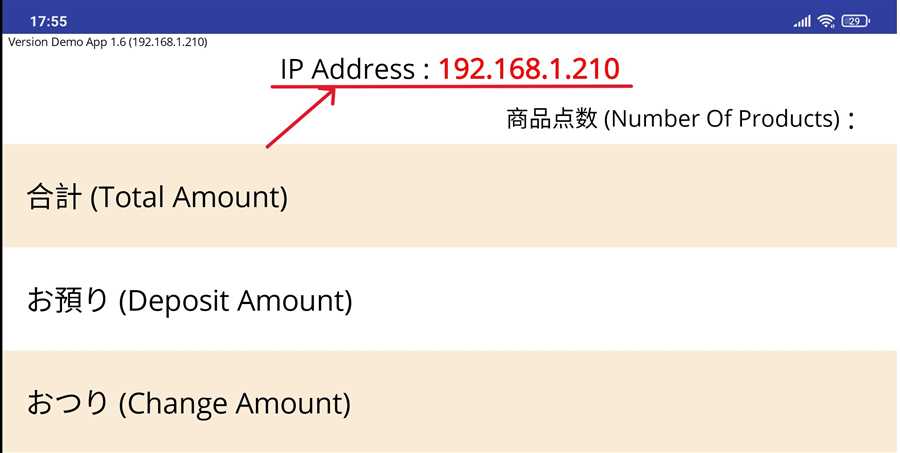
Here, 192.168.1.210 is the IP address of the customer display device connected to network and should be entered in POS terminal in accounting device to set up connection.
POS terminal side
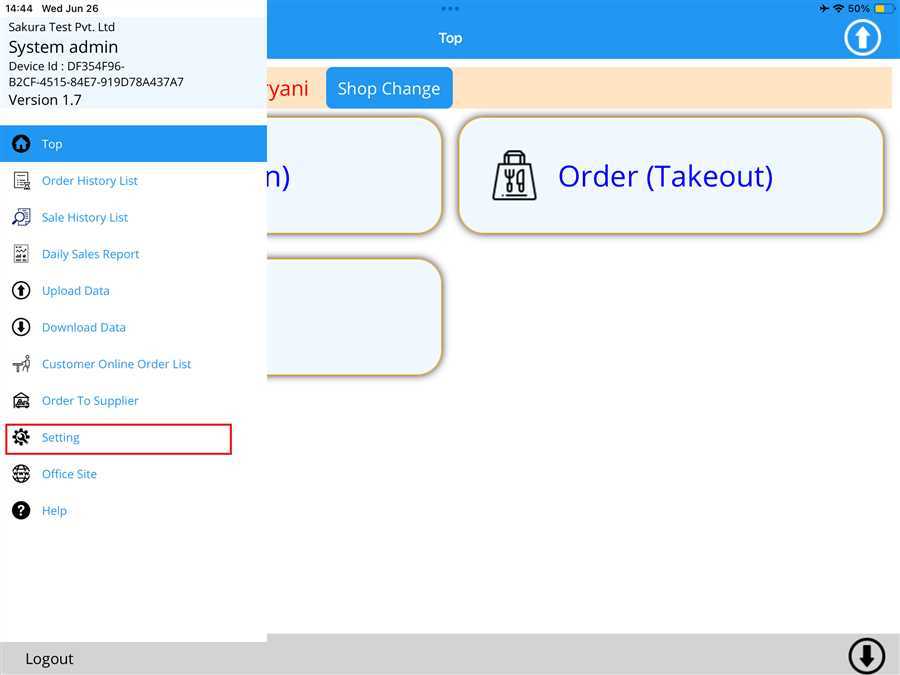
Swipe right from the left edge of your screen to access the side bar and find Setting tab. Tap on Setting.
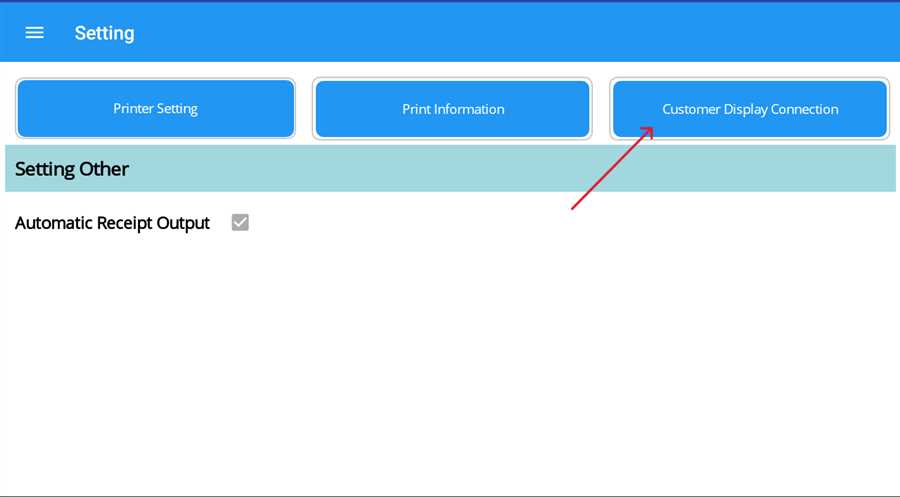
After tapping on the Setting side bar, the setting appears as shown in image below. Now, tap on the Customer Display Connection button.
Then, to setup customer display from POS terminal side, we need both POS terminal and Customer Display terminal connected to the same network(WiFi). Suppose the image shown is in tablet which is to be POS terminal.
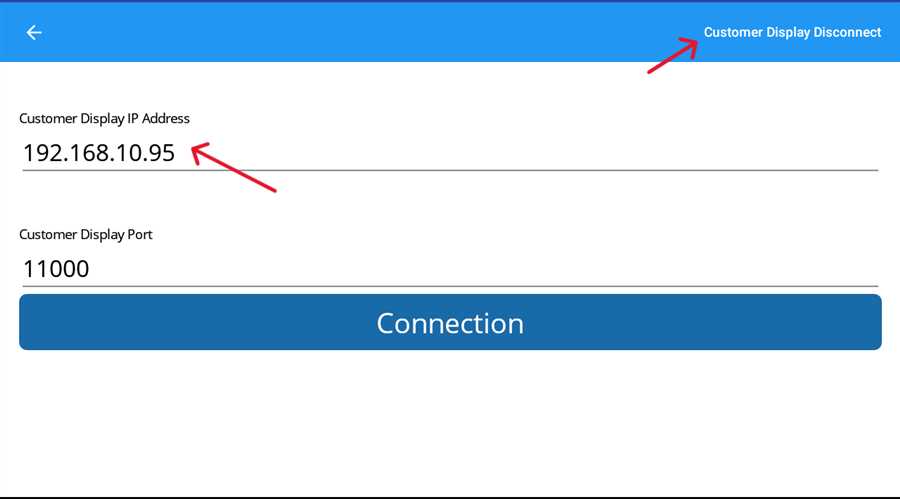
Here, IP address of Customer Display terminal is added to the field. Additionally user can manually disconnect the terminal by tapping on Customer Display Disconnect.
Additionally, certain criteria must be matched to connect customer display to POS terminal, they are :
1) POS terminal and Customer Display terminal must be connected to the same Wi-Fi network.
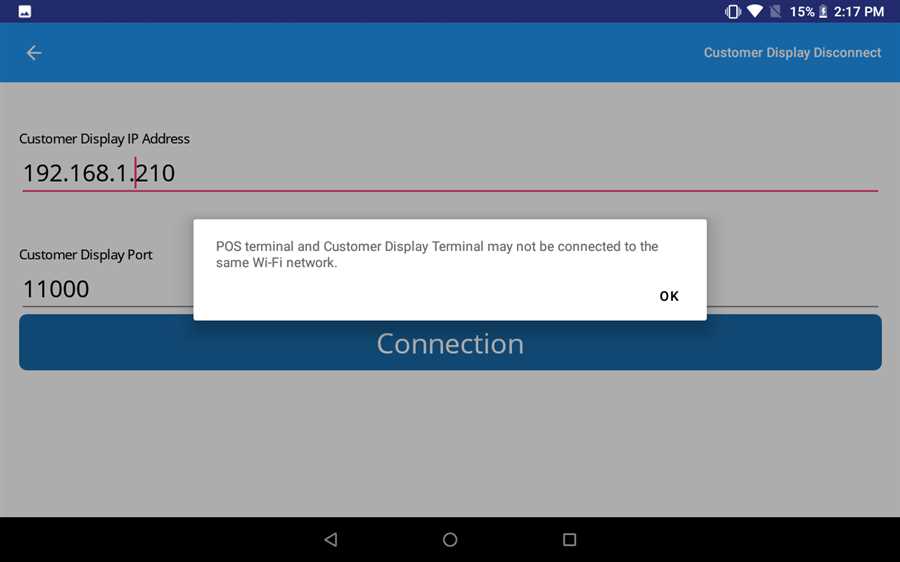
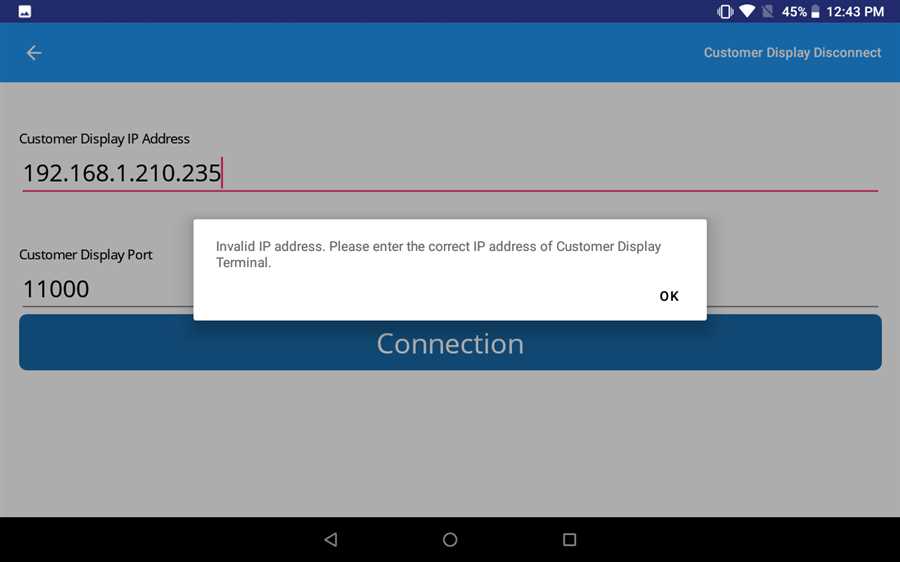
2) IP address must be valid.The format of IP address must be valid.
3) The IP address of Customer Display terminal must be same as that of POS terminal.
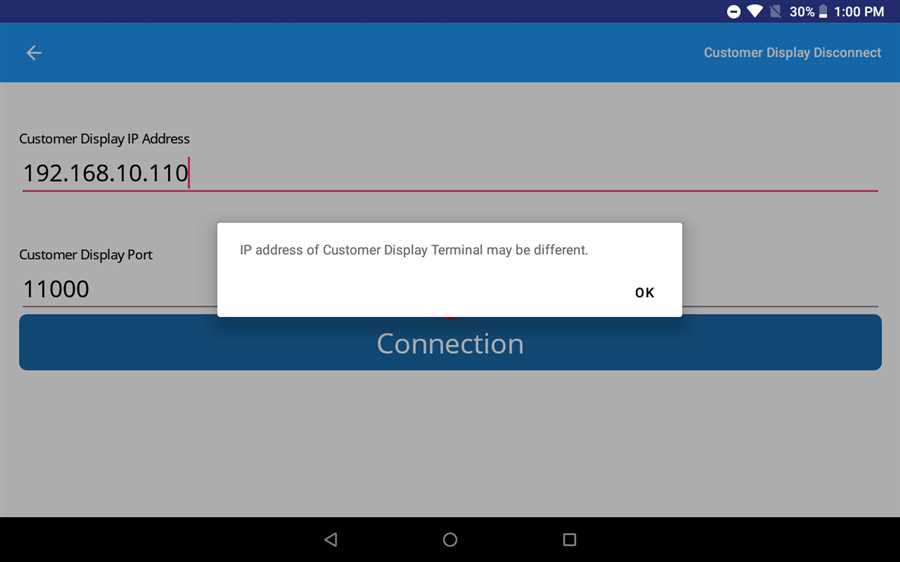
Above messages are shown while trying to connect Customer Display terminal if the criterias(Conditions) are not met.
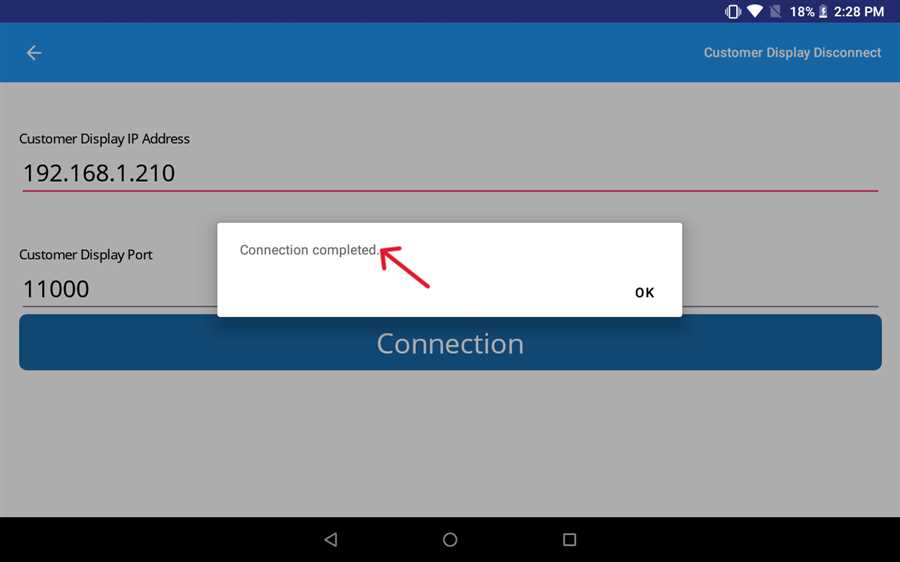
Finally, if all the process is correct after pressing Connection button a dialogue appears saying "Connection completed" to indicate that connection between POS and Customer Display Terminal has been successfully established.
After both the devices are connected, you will be able to see information like Number of products and Total Amount is set 0 in the device with customer device terminal. The IP address is now not shown in top middle part of the screen after successful connection in the customer display as it was before connection.
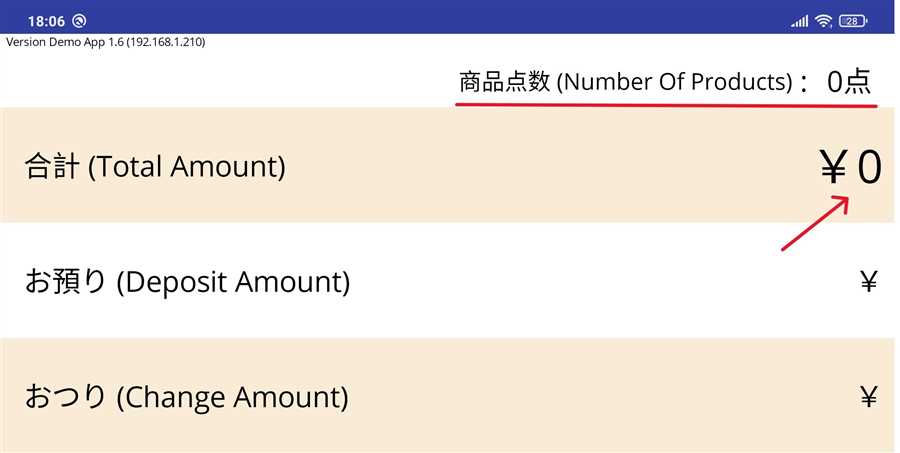
After this setup, if the process are correct and no issue occurs, user can now use "Customer Display" for accounting in the POS terminal and Customer Display terminal will show the numbers in customer display for the customers to see during payment process.
