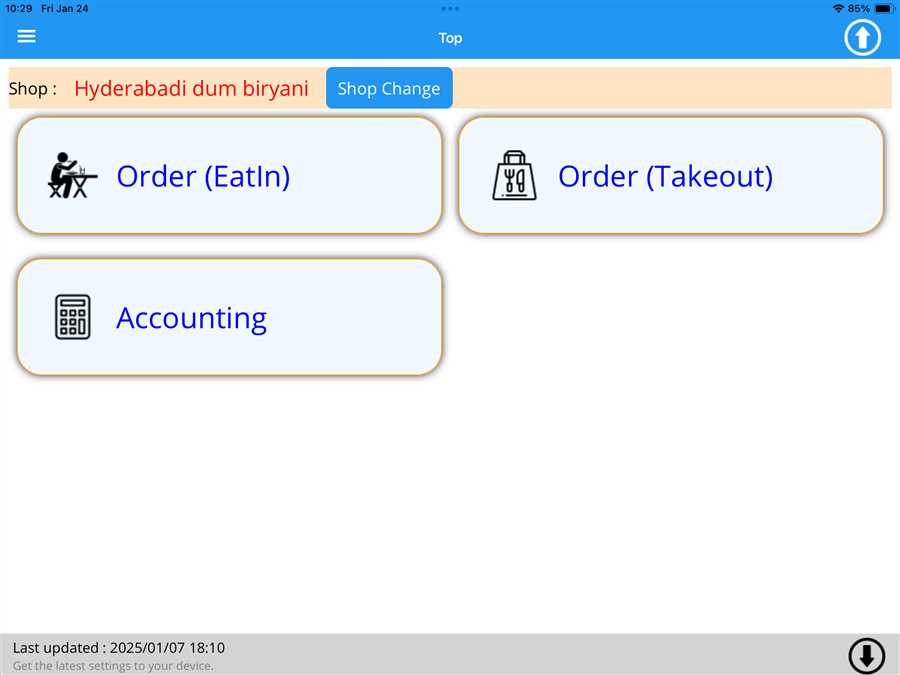
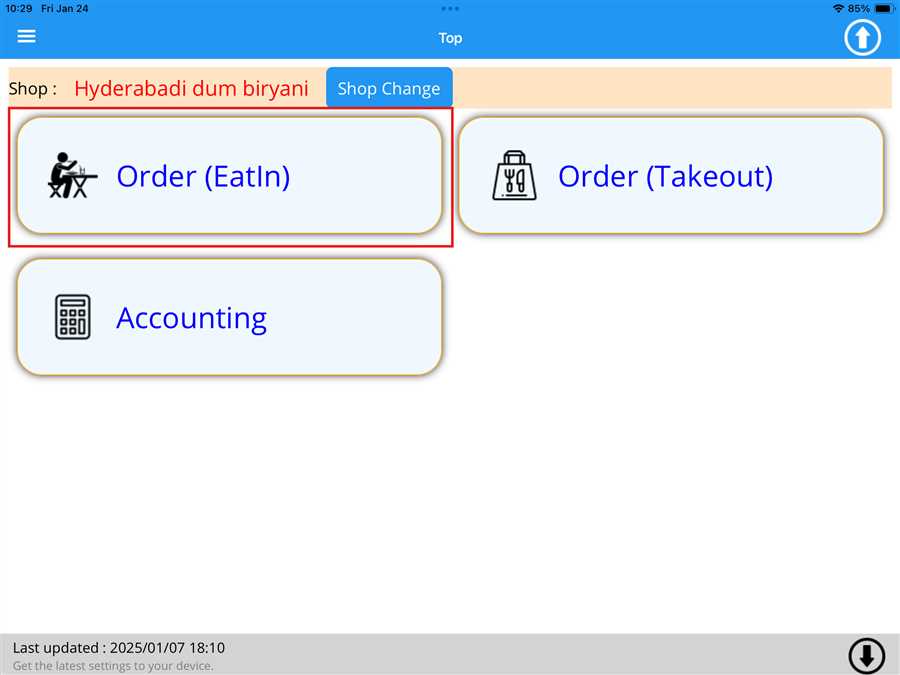
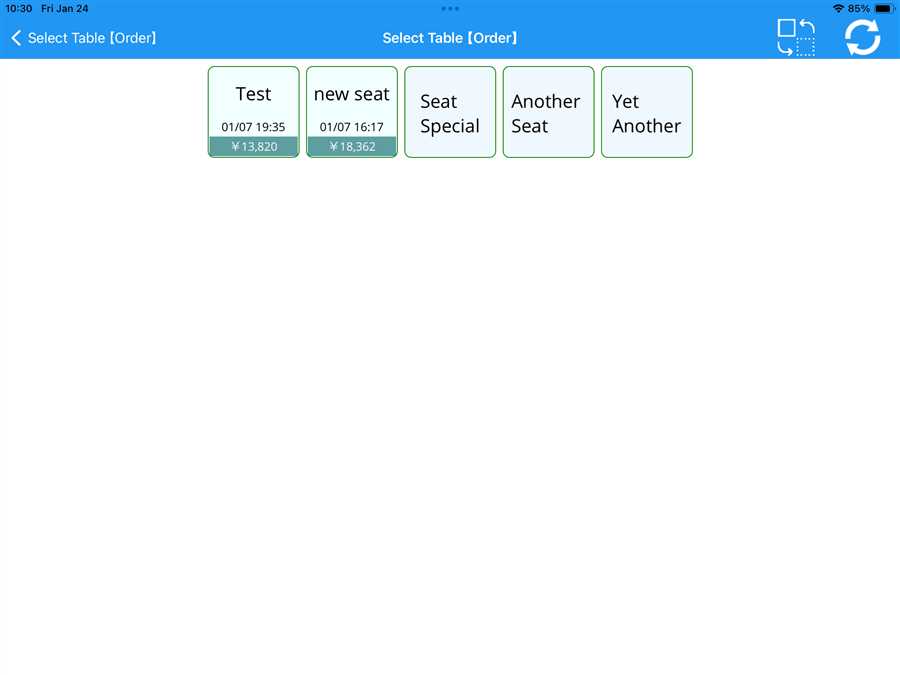
After pressing the Order (Eatin) button a list button appears which contains the tables registered on the shop with respective order value on those seat.
Shifting the order/merging order to new table
Now user can order the menu, the ordered menu with their price appears on the tables button as shown in the figure above.
User can merge or shift the order to a new table by pressing  button the seat list screen. After pressing the button it redirects us to a new page which contains the list of seat which contains ordered unaccounted data as shown in the figure below.
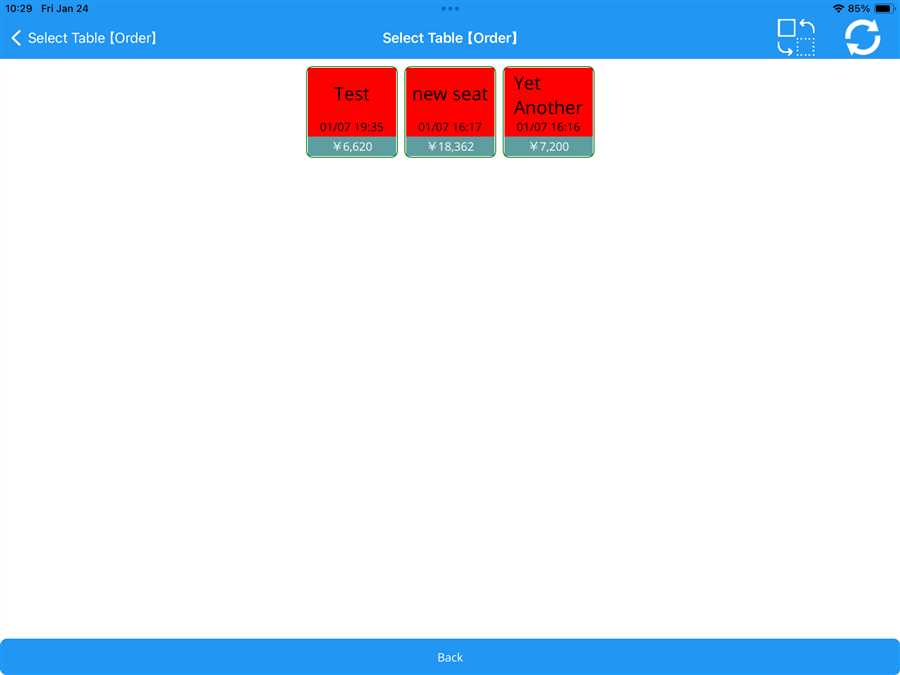
Now, user can press the table (red arrow) which the user wants to merge or shift to a new table.After pressing the seat a pop box appears which contains the list of tables registered.Now, user can shift the order to a new table(if there is not data to that table) or merge the data to an existing table as shown in the figure below.
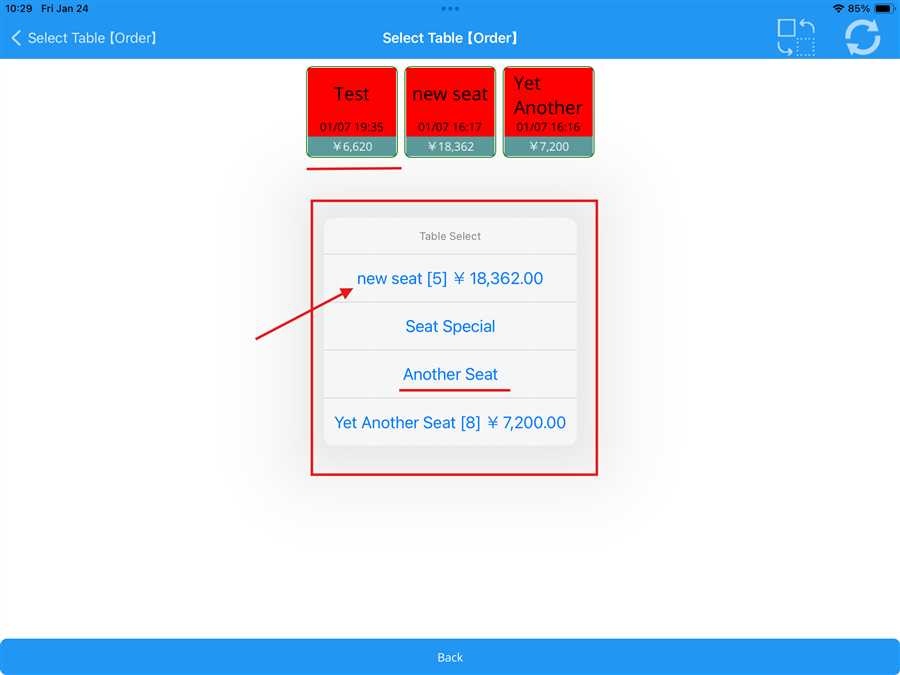
In this picture, Test table is pressed(red underline).After pressing a pop up box appears which shows a list of tables, if the user wants to shift the order from one table to another Another Seat table is selected (red underline).Note: This is not a merge beacuse there is no data in this table.
But if the user wants to merge the data to a new table new seat [5] is selected (red arrow) which has data present in that table.
After pressing to merge or replacing the order to a new table a confirmation pop box appears to confirm the merge of the order between the tables as shown below:
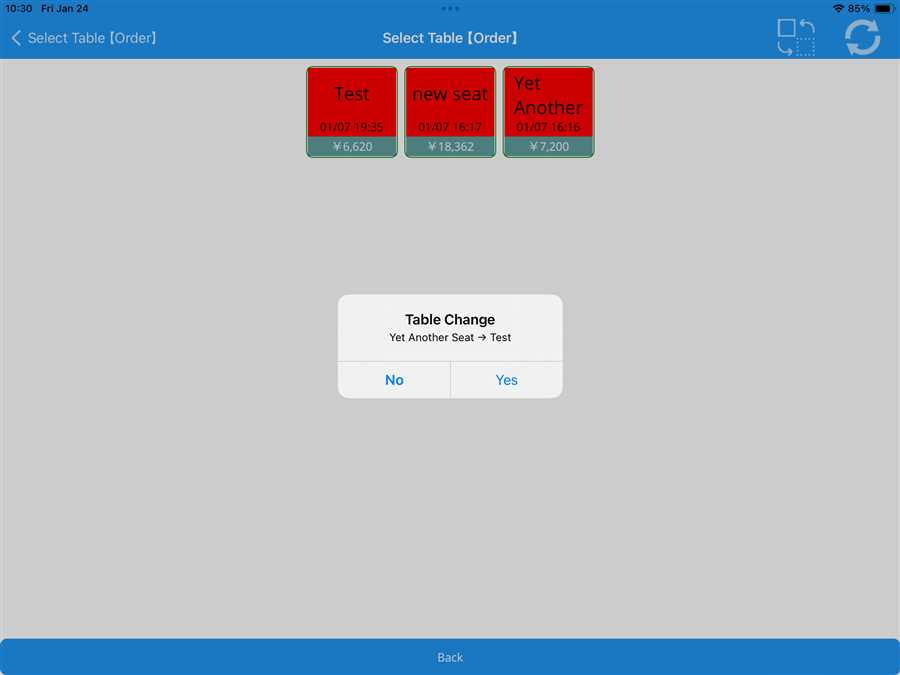
After confirmation the order on that table is either shifted or merged to a new table.
Note: The mereged order price is added between new table order price and old table order price.