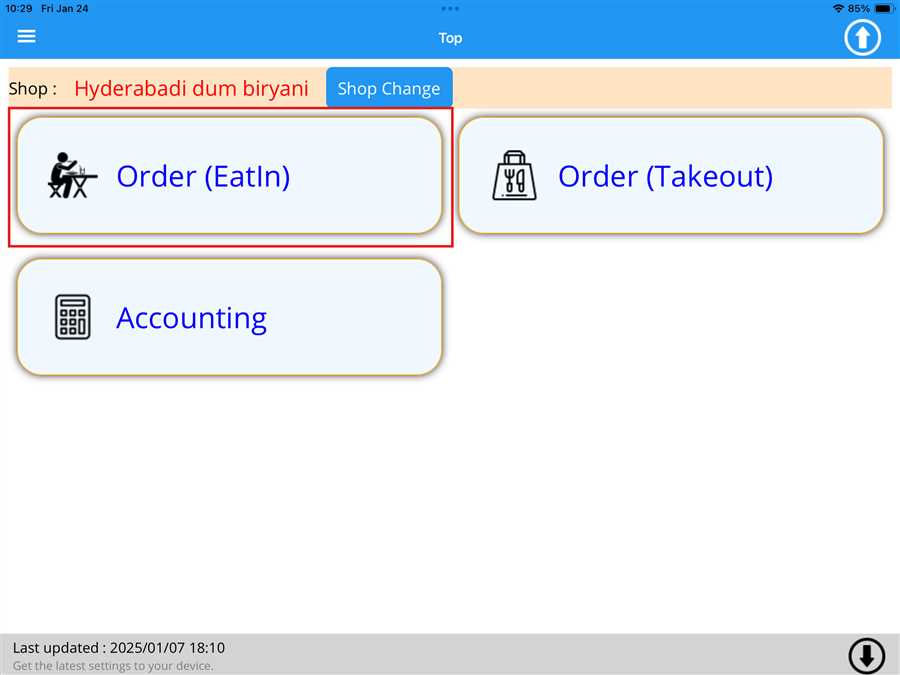
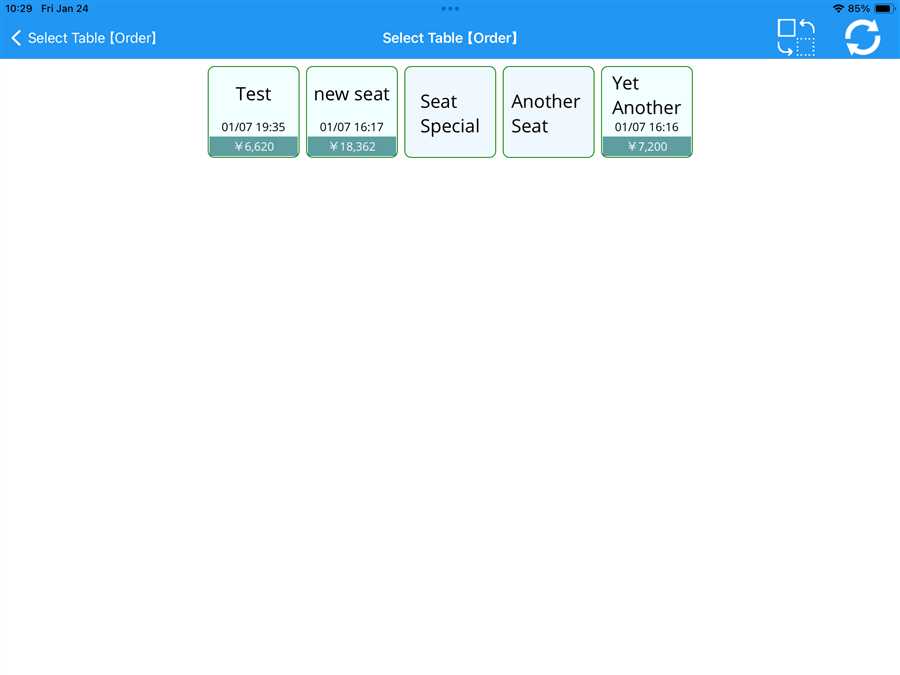
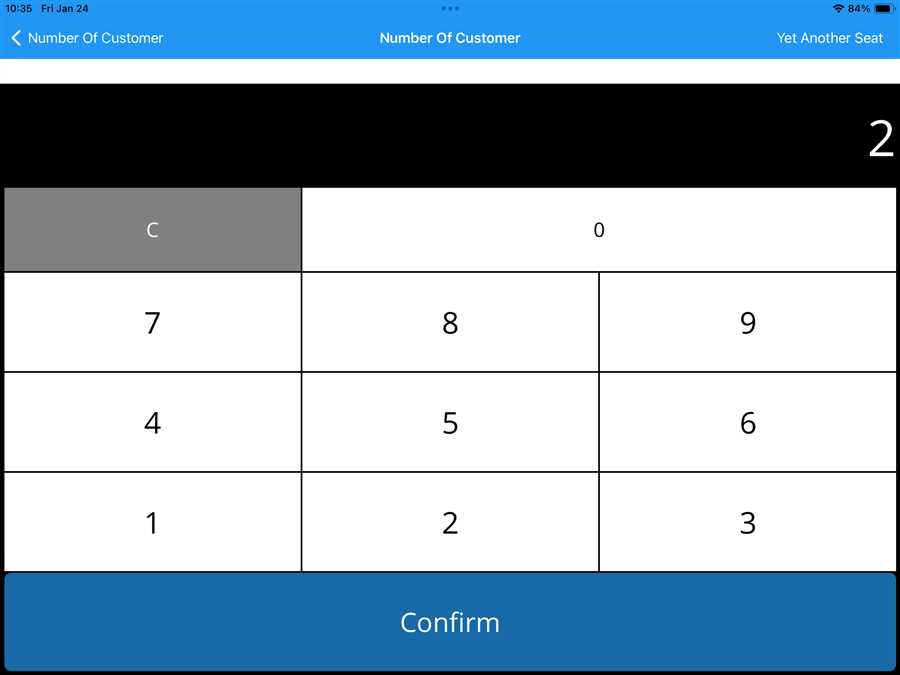
After pressing a table a page opens up which allows the user to enter the number of customers.
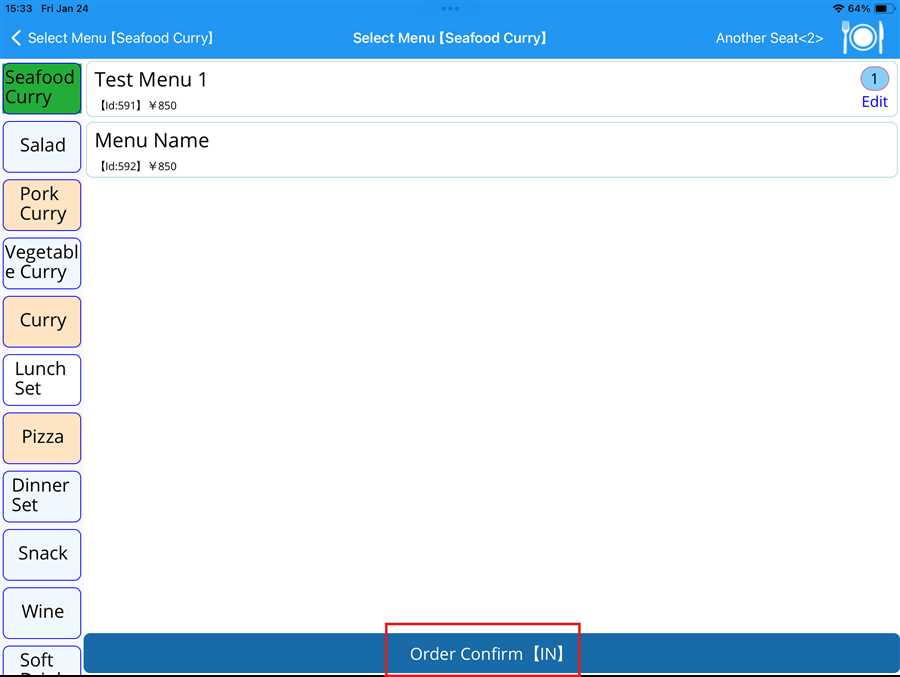
After entering the no of customer a page opens up which shows the registered menu with category of the menu on the sidebar with thier menu content in the middle part of the screen as shown in the figure below.
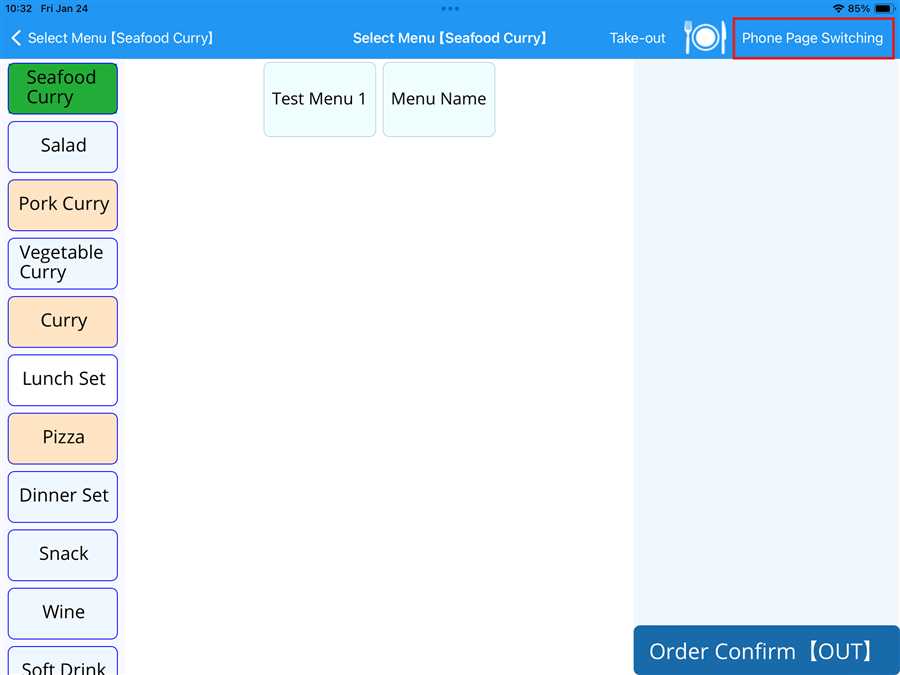
User can switch to phone view from tab view as shown in the figure above (red box) .
Note: There is option to switch form tab view to phone view but there is no option to switch from phone view to tab view as the button is not present in phone.
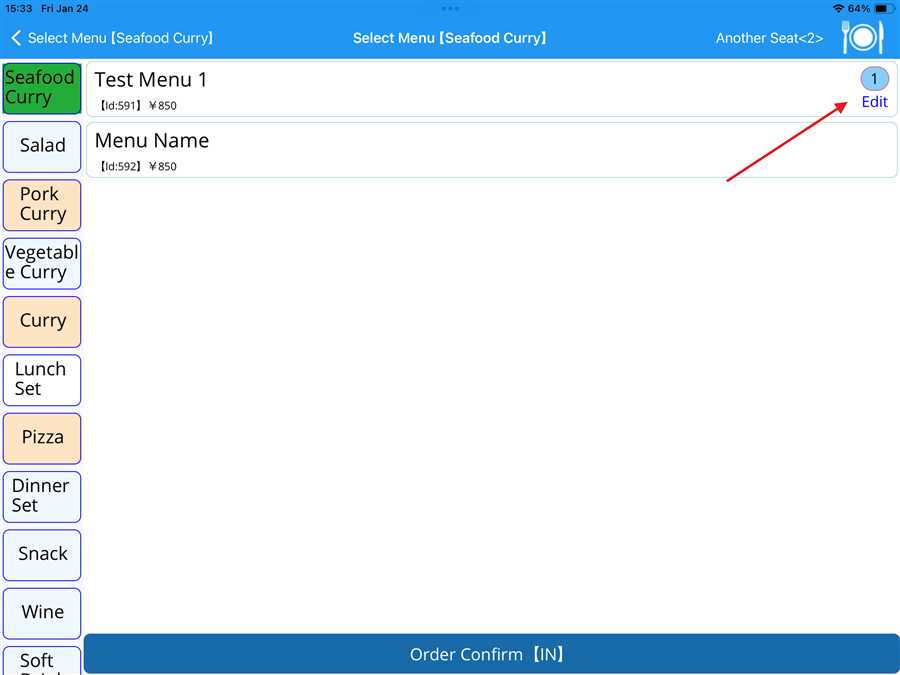
Now user can order in phone view similar to that of tab view.After selecting the menu the no of order appears on the right hand side of the selected menu where user can also edit and add the order of that specific menu.
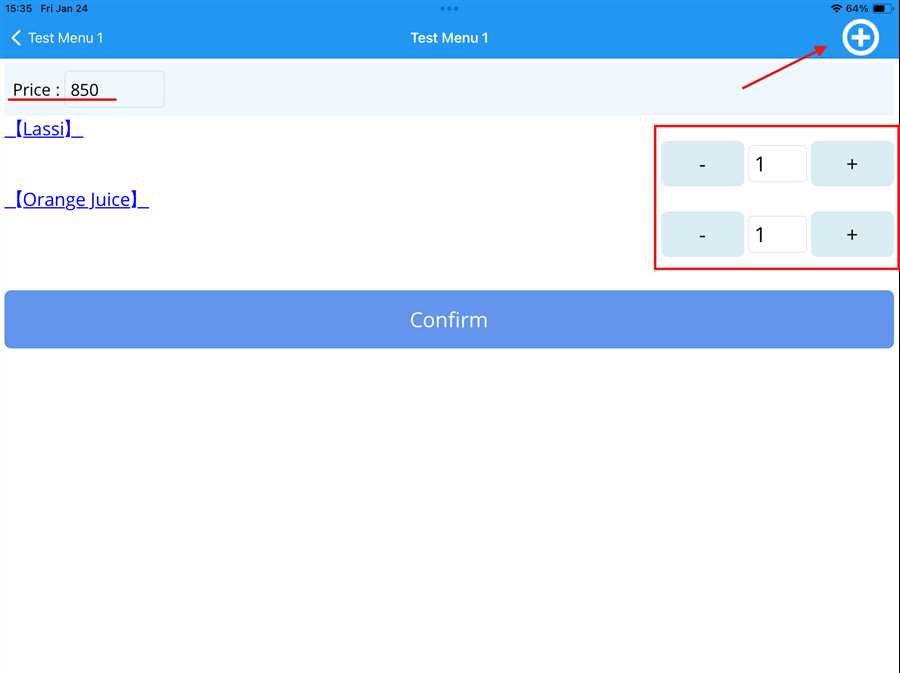
After pressing edit button a seperate page opens up where user can add custom price denoted by red underline and made changes to sub menu as denoted by red arrow and red box of that menu as shown in the figure below.
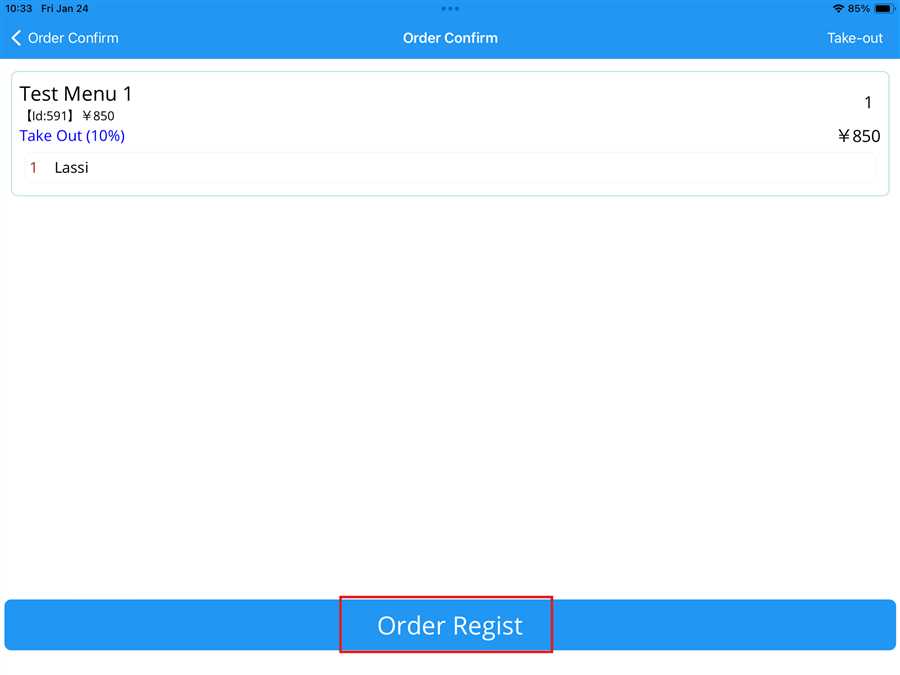
After confirming the order user can press Order Confirm [IN] button which promptly opens up the order confirm page which contains the info of menu ordered.Then, the user can press the Order Regist button to order menu in phone view switching from tab view.