Login to POS App
Open the POS app on your handheld device and log in. After logging in, the homepage will open, displaying the options in the sidebar, along with 'Order (EatIn),' 'Order (Takeout)' and 'Accounting' at the top of the page, as shown in the picture below.
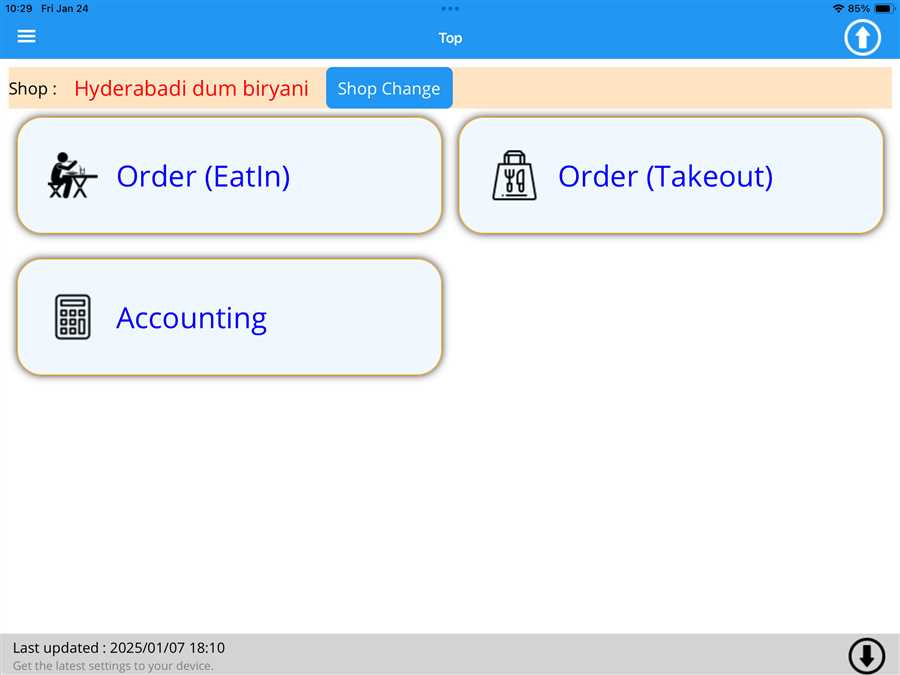
Opening Order(Takeout) page
User can order eatin by pressing Order(Takeout) button on the screen as shown in picture below
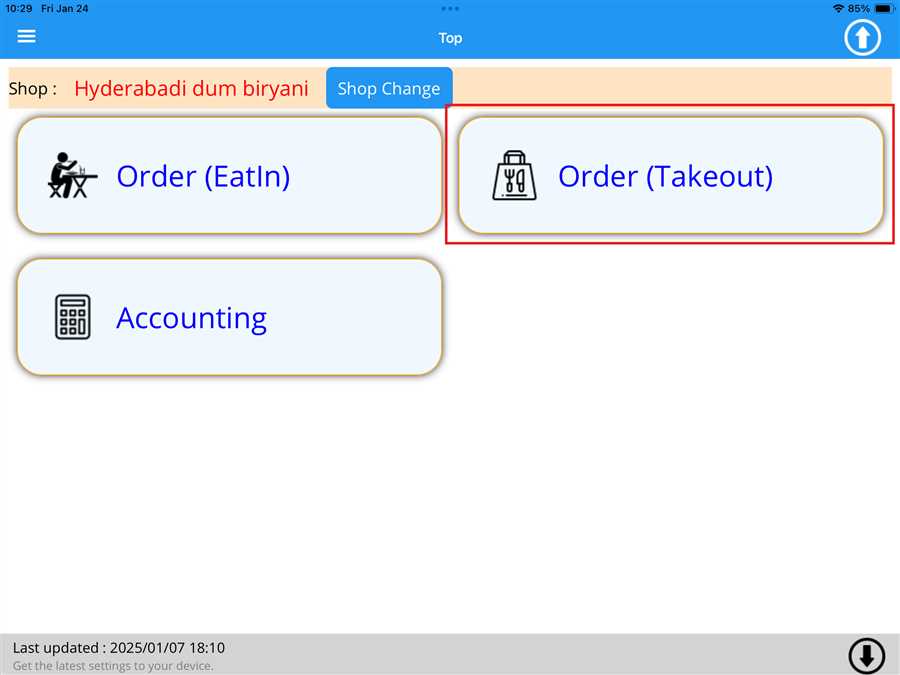
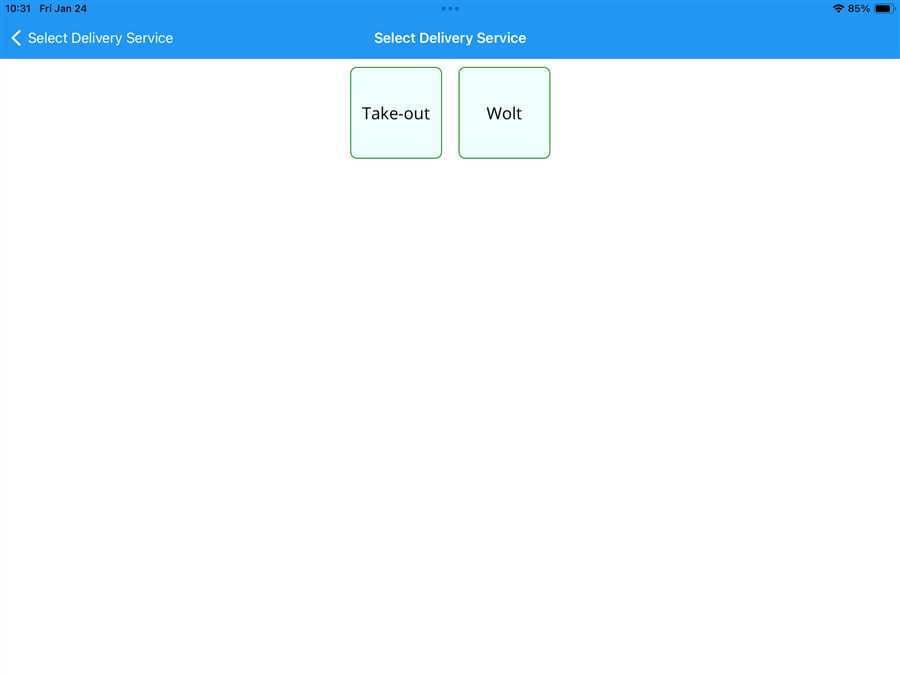
After pressing the Order(Takeout) button, takeout button and register delivery services buttons(Wolt) are shown.
Note: Delivery services are registered through POS web.
After selecting either takeout or delivery service(wolt) a page opens up which shows the registered menu with category(red arrow) of the menu on the sidebar with thier menu (red box) content in the middle part of the screen as shown in the figure below.
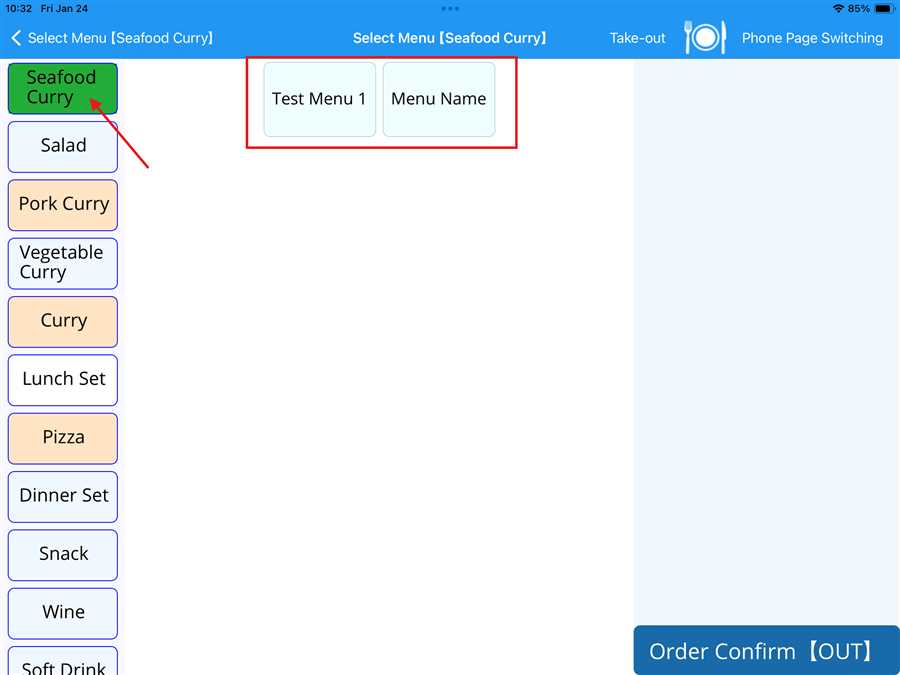
Note: Only menu with takeout option selected appears in this menu list which can be viewed and updated thorough menu update tab.
Ordering Menu
If the menu contains sub menu a pop up opens up which shows sub menu registered with that menu.If the menu contains more than one sub menu a seperate page opens up which has more than on sub menu selection sub menu list.
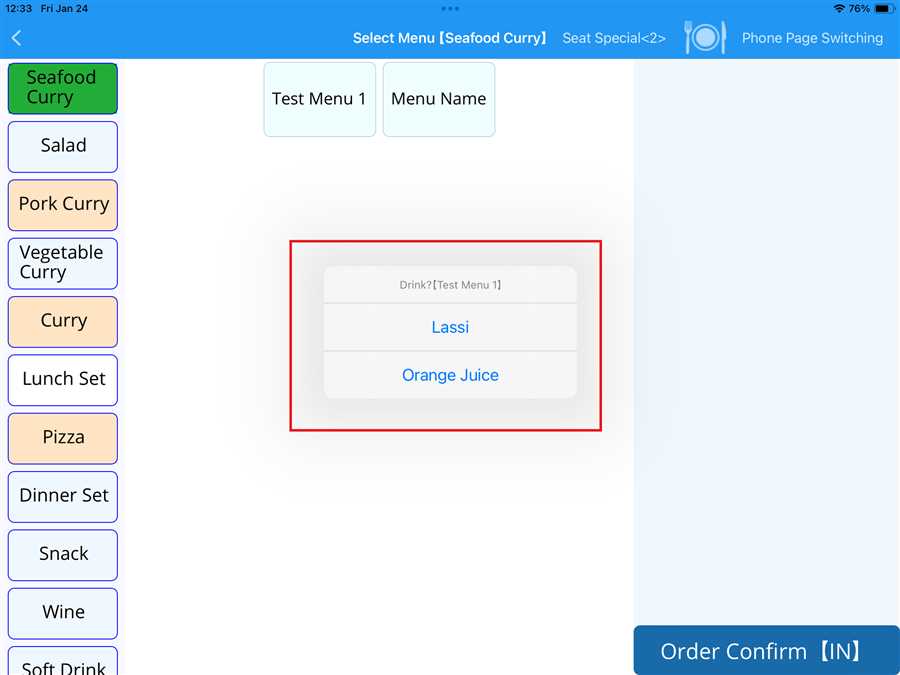
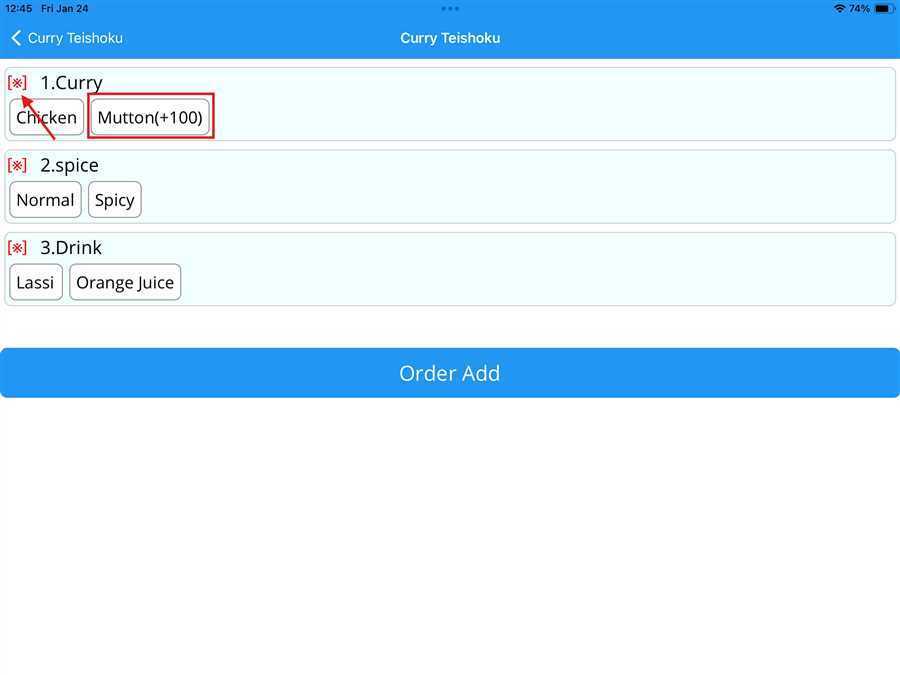
Here,Test Menu 1 contains only one sub menu (red box) so it appears on a pop up box but butter chicken curry contains more than one sub menu so a sperate page appers appears to choose the sub menu.
Note: If a [*] appears before the sub menu name the option is mandatory and has to be selected and cannot be skipped.Also, if there (+100) besides the sub menu choice that means the choice is going to cost 100 more to the toal sum and is added to the toatal menu amount.
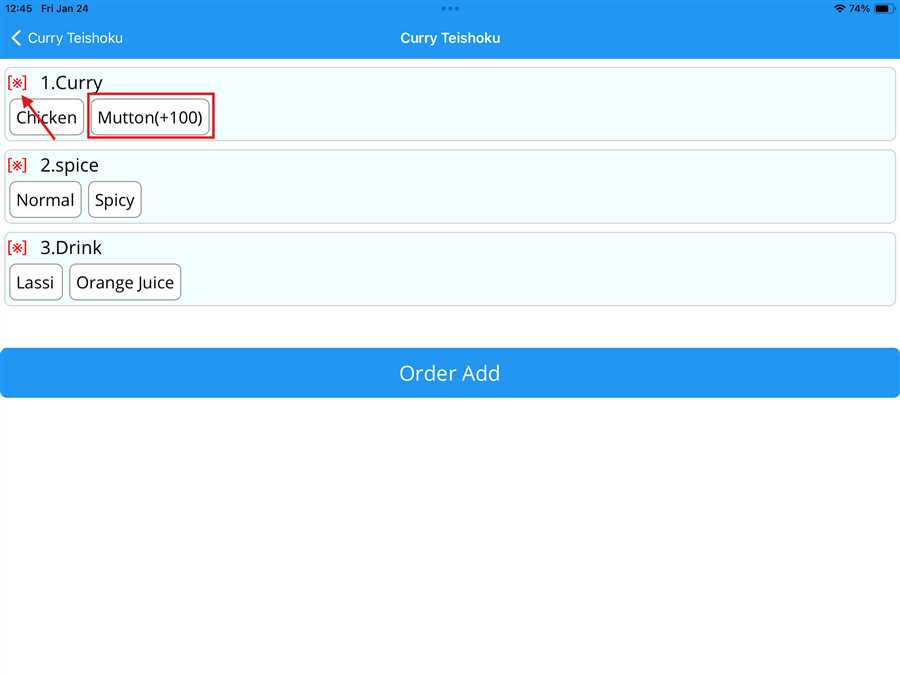
Here [*] (red arrow) before curry denotes that the curry has to be selected and Mutton(+100) denotes that the selecting Mutton(red box) is going to add 100 to the price of the menu.
After selecting the required sub menu(if there is any) the selected menu appears on the right hand side of the screen with its respective details like its sub menu and price as shown in the figure below
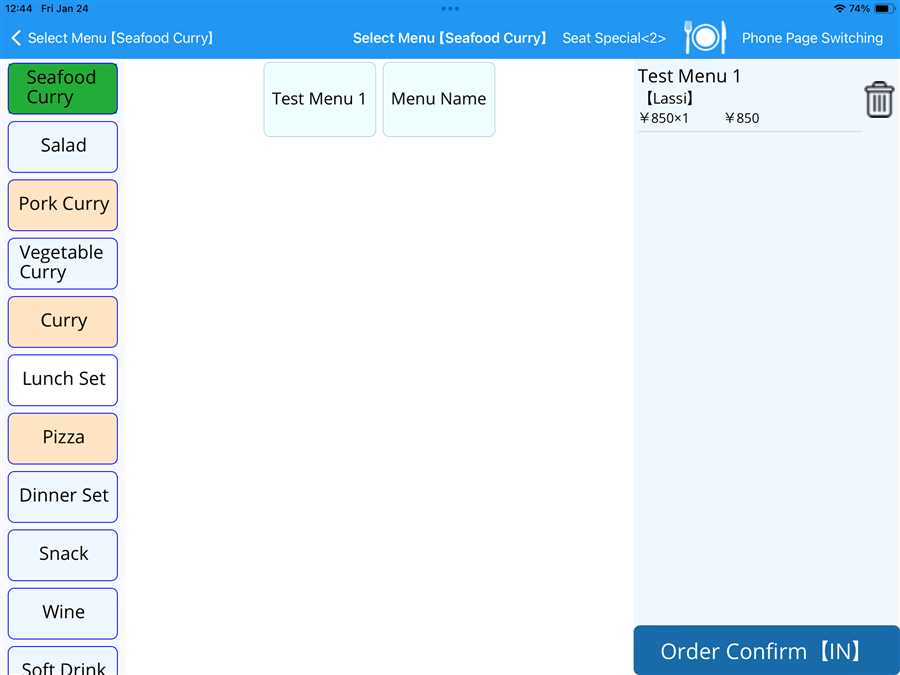
Now,user can select the ordered number of menu and its content and press Order Confirm [IN] to place the order.
