Login to POS App
Open the POS app on your handheld device and log in. After logging in, the top page will open, displaying the sidebar options along with "Order (Eatin)" "Order (Takeout)" and "Accounting" on the top page, as shown in the picture below.
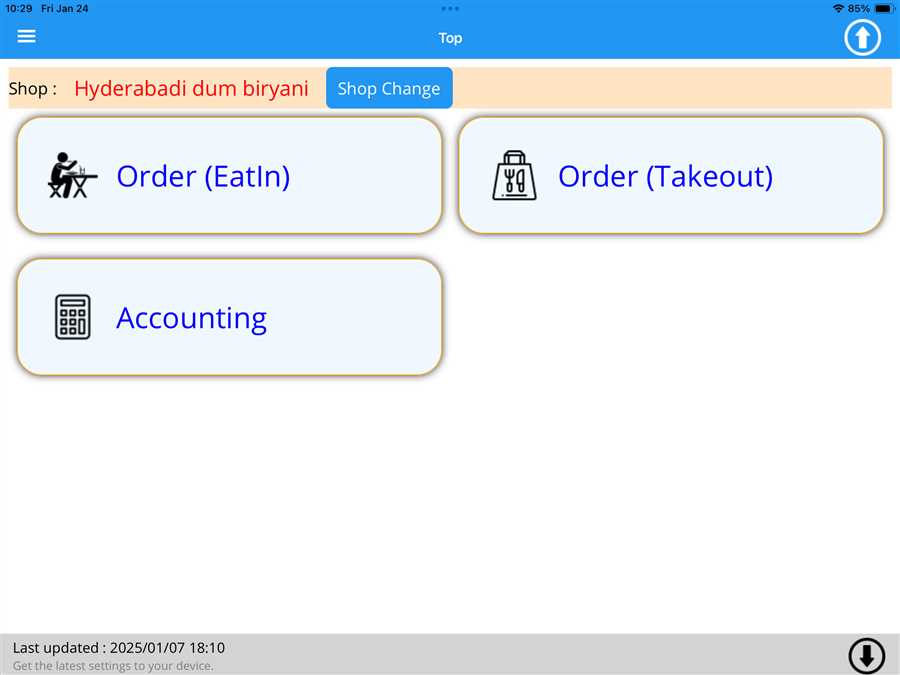
Note: User can download data and upload data from app to the server by pressing up arrow  (upload) and down arrow
  (download) in top left and top right of the screen.
Opening Accounting page
User can account the ordered menu by pressing Accounting button on the screen as shown in the figure below
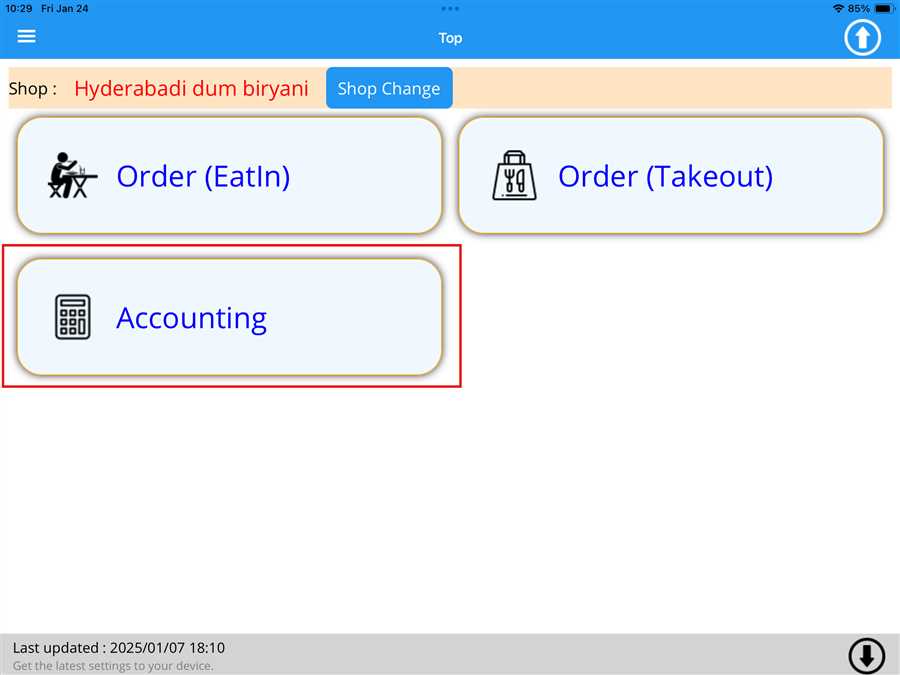
After pressing Accounting button a list of button appears which contains the tables registered on the shop with respective order value(total ordered menu price) on those tables.
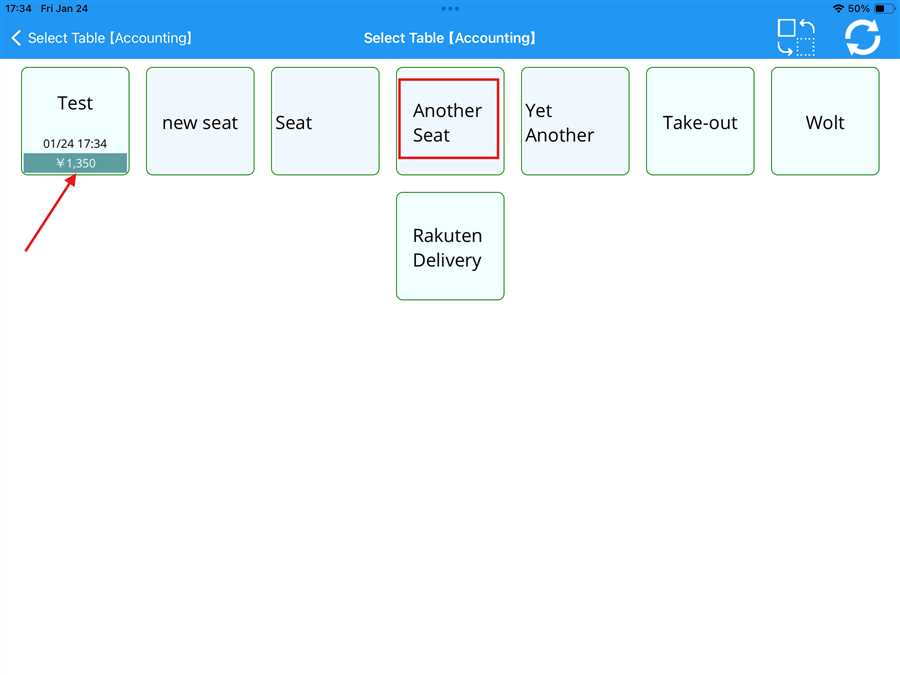
Here,Another Seat is the table registered to the shop shown by red box and ¥ 1,350 is the amount accumulated on the test table shown by the red arrow.
After selecting a table, the accounting page opens, allowing the user to view the ordered items along with their details, such as submenu information, quantity, and price, as shown in the picture below:
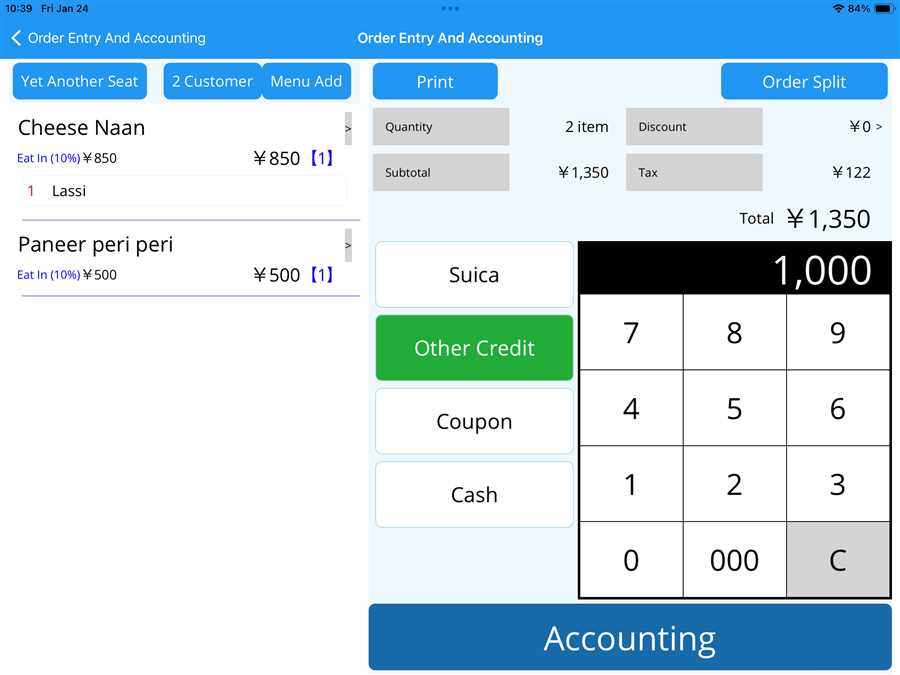
The detailed explanation of the above page is given below:
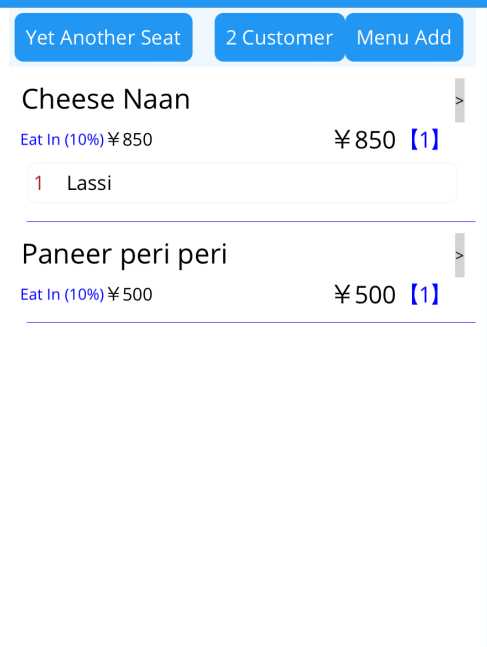
This section of the accounting page displays the name of the ordered menu item, along with its submenu choices and price. For example, 1 Cheese Naan (Eat-in 10%) is ordered at a price of 850, with Lassi selected as the submenu option.
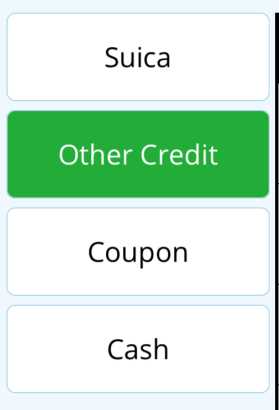
This portion indicates the available methods of payment for accounting.
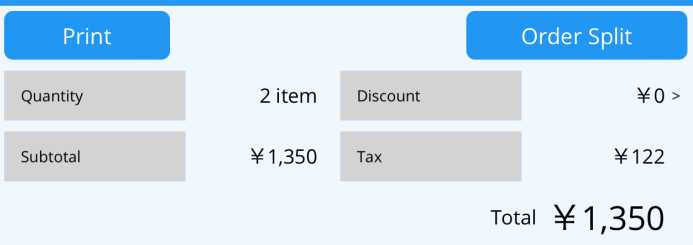
As shown in the picture above, this section displays the quantity and price of the ordered menu, along with the applicable tax amount. There is also an option to print the receipt and split the order, which is explained separately in another section.
Confirm Accounting
After entering the total bill amount in the amount insert section, Accouting button is pressed to account the menu ordered in that table as shown in the figure below.
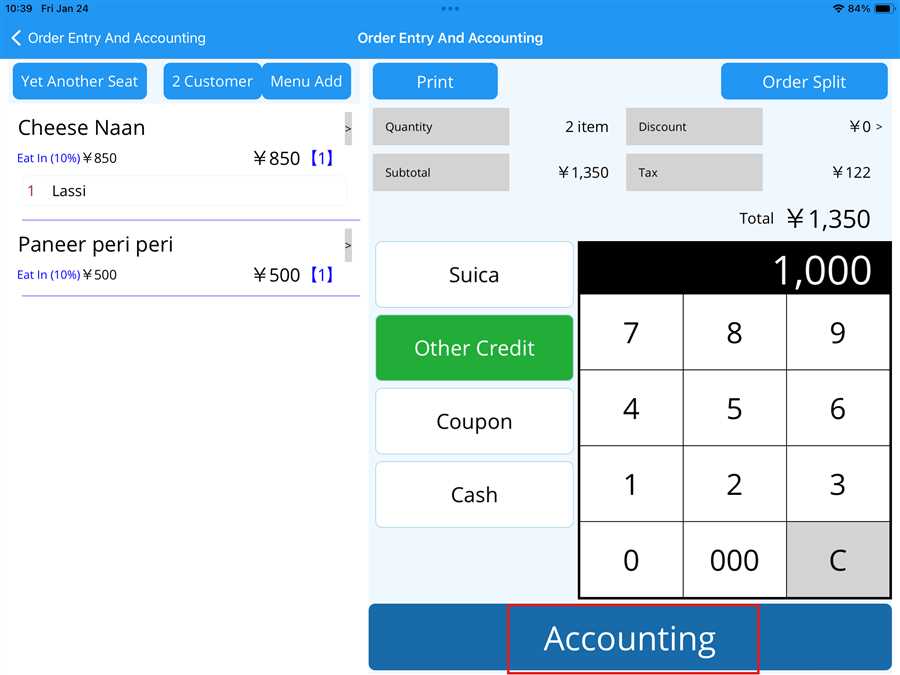
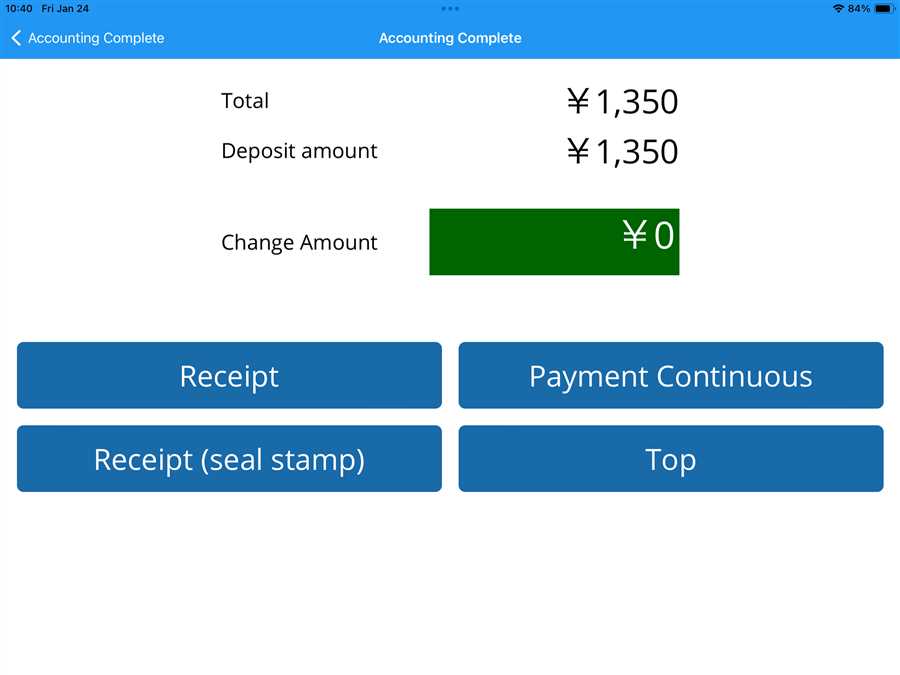
After selecting the Accounting option, the ordered menu is processed, leading to a new page that provides a report of the order. This page also allows the user to print the receipt again by pressing the Receipt button, continue making payments for another table using the Payment Continuous option, or return to the main page by clicking the Top button, as shown in the figure below.
Thus, above steps can be followed carefully to account the order through POS app.
