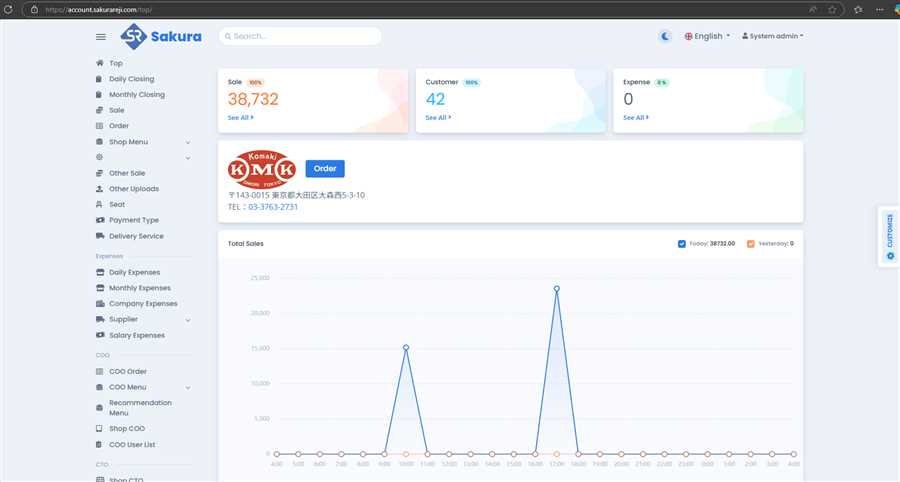
After you have successfully logged in to POS web, you will be in the top page of the site.
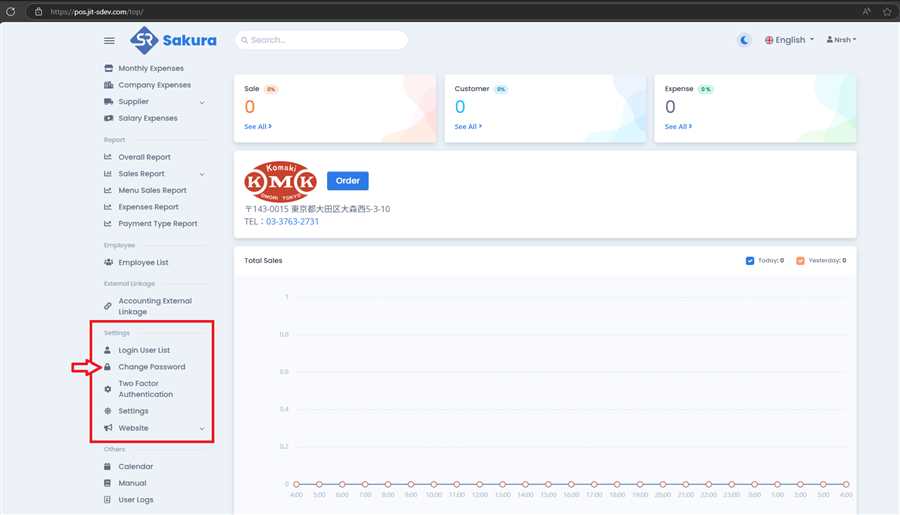
On the left side of page, there is a panel with lots of links. Scroll down to 'Settings' part and click on the Change Password.
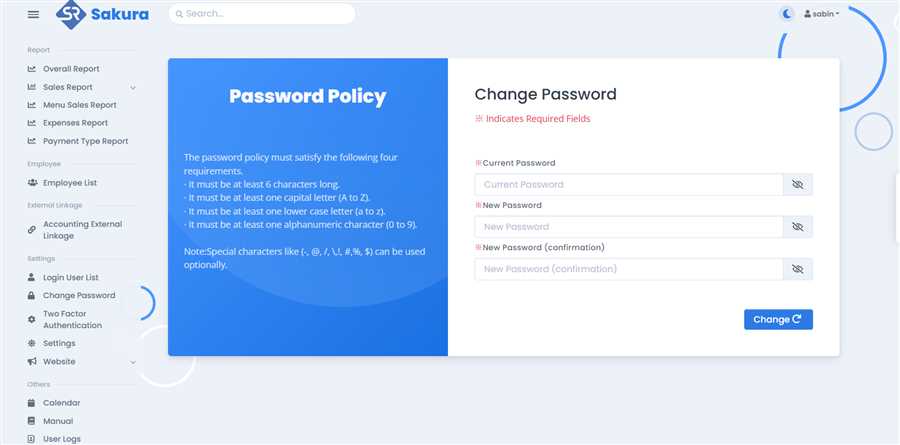
A form to change password will appear as shown below:
Process to Change Password:
-
Enter Current Password:
- Fill in the "Current Password" field with your existing password.
- This step verifies that the user requesting the password change is authorized to do so.
-
Enter New Password:
- In the "New Password" field, input the desired new password.
- Ensure that the new password complies with the password policy mentioned on the left side of the screen.
-
Confirm New Password:
- In the "New Password (confirmation)" field, re-enter the new password to confirm it matches what was entered earlier.
- This avoids typos or mismatches in the new password.
-
Submit the Form:
- Click on the "Change" button to apply the changes.
- The system likely validates all input fields to ensure they meet the required conditions and that the current password is correct.
Important Things to Consider:
-
Password Policy Compliance:
- Make sure the new password meets all the requirements:
- At least 6 characters long.
- Includes at least one uppercase letter (A-Z).
- Includes at least one lowercase letter (a-z).
- Includes at least one numeric character (0-9).
- Optionally includes special characters like
@, !, #, $.
-
Avoid Reusing Passwords:
- Do not reuse your current password or any recently used passwords to ensure security.
-
Use Strong Passwords:
- Consider using a mix of letters, numbers, and special characters to make your password stronger.
- Avoid common words, sequential numbers (e.g., "12345"), or personal information like your name or date of birth.
-
Confirm Field Matching:
- Ensure the new password matches exactly in both the "New Password" and "New Password (confirmation)" fields. A mismatch will result in an error.
-
Keep Passwords Confidential:
- Do not share your password with anyone or write it down in an unsecured location.
-
Check for Visual Cues:
- The form provides visual indicators (like the red
* and possibly error messages) for required fields. Ensure all required fields are completed correctly.
-
Update Saved Passwords:
- If your browser or password manager saves passwords, update it with the new password.
This process and these considerations will help ensure a secure and successful password change. If you encounter issues, verify the current password is correct and ensure the new password meets all policy requirements.
