Step 1: Navigating to the Seat Section
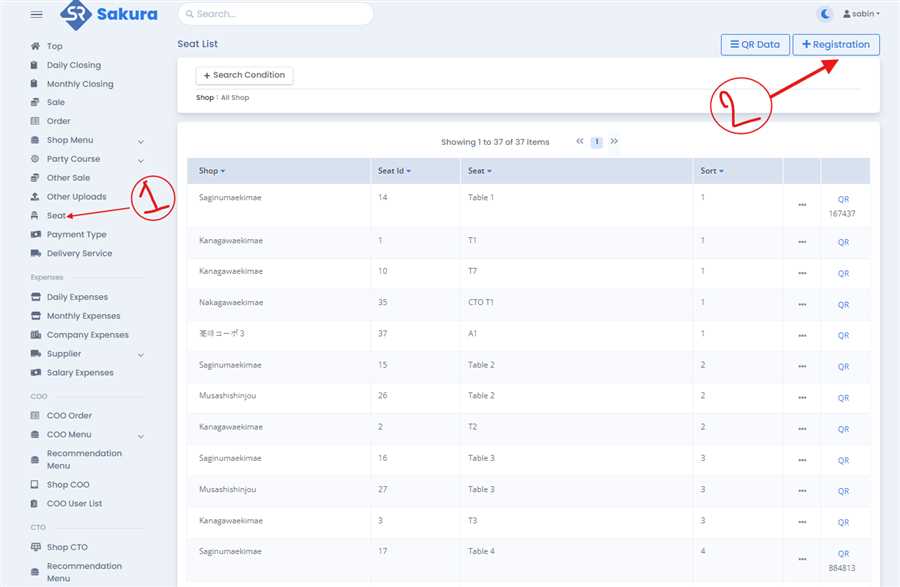
- From the left-hand sidebar, click on the Seat option (marked as ① in the image).
- This will take you to the seat list, where you can view all the seats registered for various shops.
Step 2: Opening the Seat Registration Form
- In the top right corner of the seat list, click the + Registration button (marked as ② in the first image).
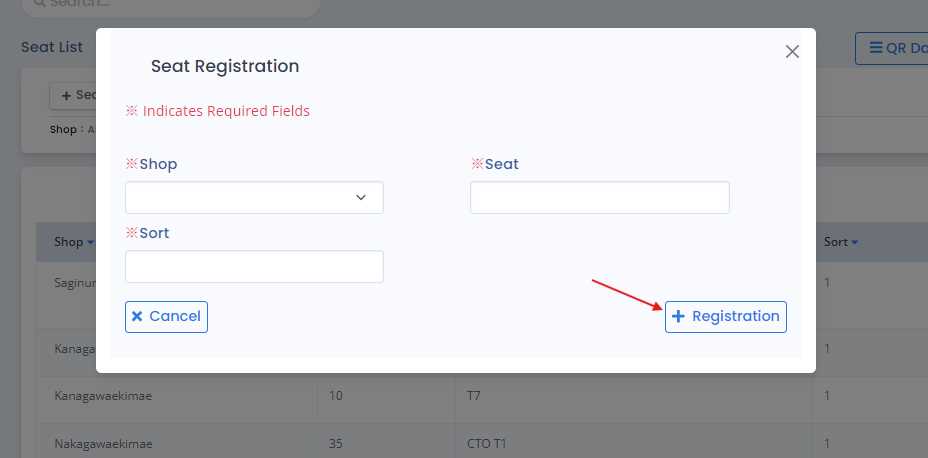
- This opens the Seat Registration form, as shown in the image.
Step 3: Filling Out the Registration Form
- In the Seat Registration popup window:
- Select the Shop from the dropdown menu.
- Enter the Seat name/number in the text field.
- Enter a Sort number to define the seat's sorting order in the list.
Step 4: Completing the Registration
- Once all fields are filled in, click the + Registration button at the bottom right of the form (indicated in the second image).
- This will register the seat in the system, and you will see it reflected in the seat list.
If needed, you can also cancel the registration by clicking the Cancel button next to the Registration button.
