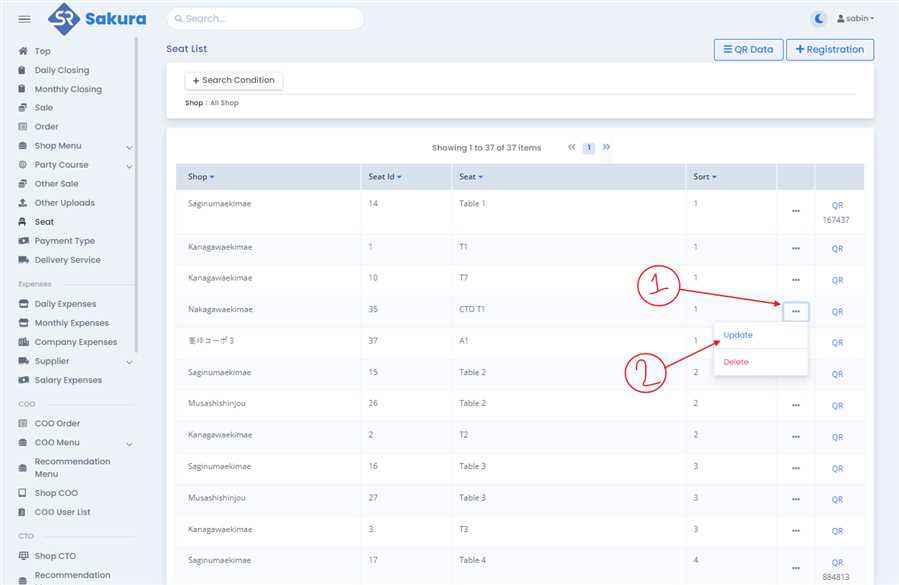
Step 1: Navigating 3 Dot in the seat list of the seat you want to update,
- From list of the Seats, you will see the 3 dot in the name of every seat, Select the seat that you want to update (marked as ① in the first image).
- This will take you to the small buttons where you will see the update and Delete Button
Step 2: Click on the Update Button
- While 3 dot were clicked you will see the two button so clicked on the Update Button (marked as ② in the first image).
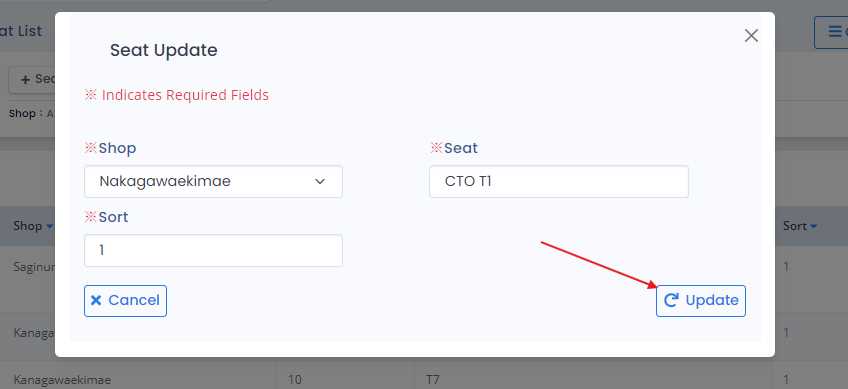
- This opens the Seat Updateform, as shown in the second image.
Step 3: Update/ Modifiy the Update Form
- In the Seat Update popup window: (if required to update)
- Update the Shop from the dropdown menu.
- Update the Seat name/number in the text field.
- Update Sort number to define the seat's sorting order in the list.
Step 4: Completing the Update Process
- Once all fields are filled/updated in, click the + Update button at the bottom right of the form (indicated in the second image).
- This will update the seat in the system, and you will see it reflected in the seat list.
If needed, you can also cancel the update by clicking the Cancel button next to the Update button.