Steps to Register/Update the QR information of a Shop
① On the left side bar you will find the seat section, Click on that seat section to open a seat List
② On the seat page, if your shop has access to CTO then you will find a button name as QR Data, click on that button and find your shop and edit the data as per your needs.
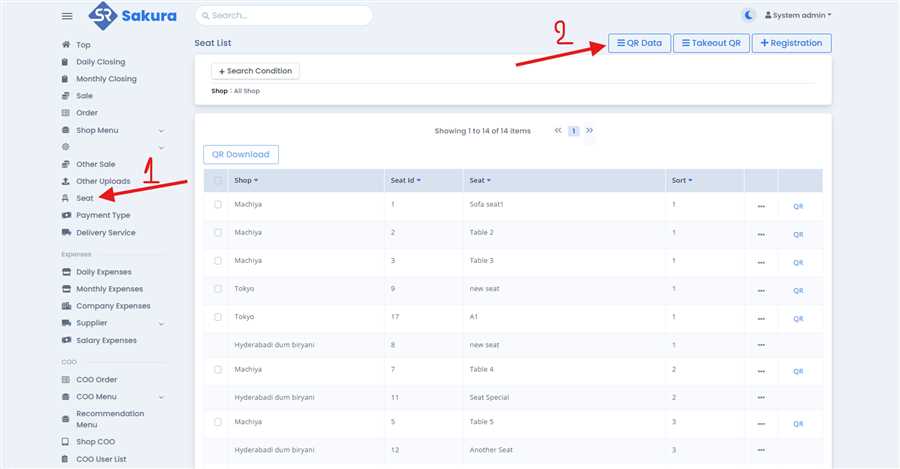
After clicking on that button, it has two perspective to open a form,
For Company Manager
Ø If you are a Company manager on clicking on that button you will found a list where you can see the Shops list of that company and the Details information of Shop QR Data as Shown in figure below:
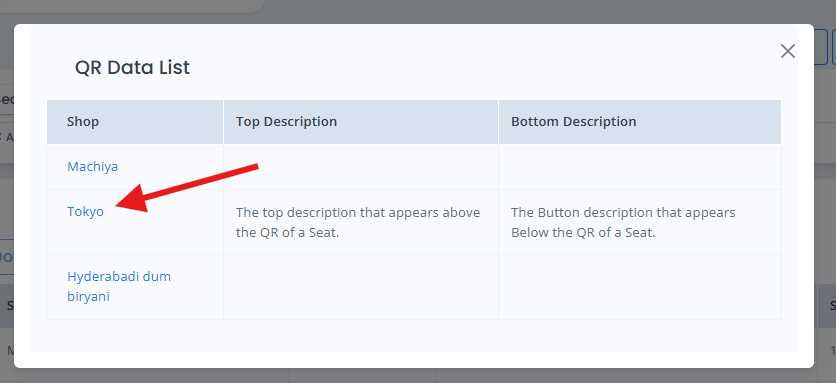
Ø From that list you can select the shop and edit the QR information as below,
For Shop Manager
Ø If you are a Shop manager on clicking on QR data button you will found a direct form through which you can inserts the data as per the need as shown in figure below:
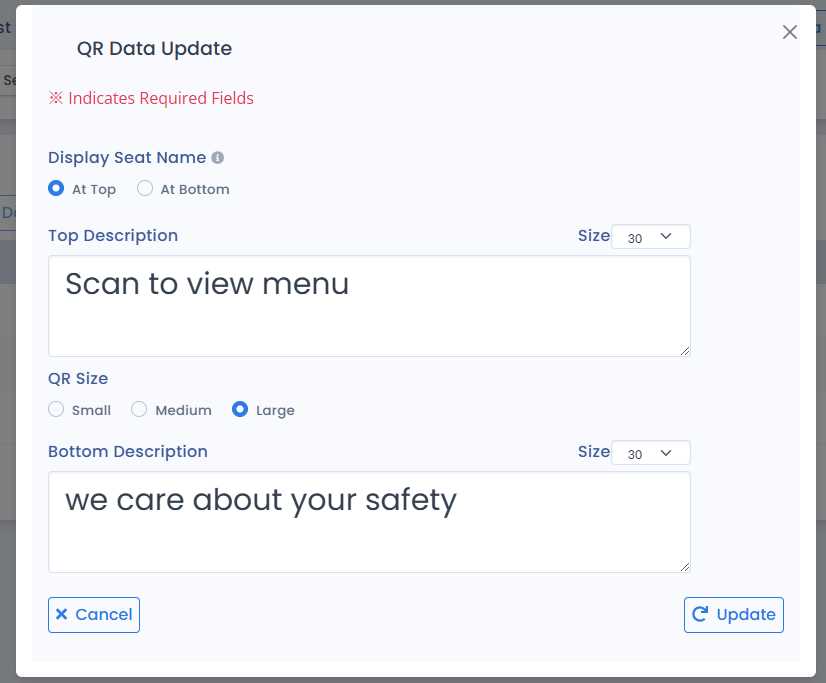
In this Form you will find a fields from where you can customize the information that you want to;
l Display Seat Name: This is the field where you can choose where you want to display the seat name, we provide you two options, at top and at bottom. This will make your seat name above QR and Below the QR. You can choose your desire position to display the seat name.
l Top Description: This is a filed where you can fill the content that you want to displayed above the QR of that seat. Whatever you want to write can be written here, like a Shops Quotes and Other information of Shops, that you want to marketing about.
Ø SIZE: There is a Size dropdown where you can choose the font size of the top Description. This field is with the Top Description. From this field you can Customize the size of the top Description.
l QR SIZE: There are three different size that we provide to choose, you can select the desire size of the QR image you want. These three options are; Small, Medium and Large, these size are standard sizes.
l Bottom Description: This is a filed where you can fill the content that you want to displayed below the QR of that seat. Whatever you want to write can be written here, like a Shops Quotes and Other information of Shops, that you want to marketing about.
Ø Size: There is a Size dropdown where you can choose the font size of the Bottom Description. This field is with the Bottom Description. From this field you can Customize the size of the Bottom Description, you can flex your wifi name, password and many other information.
After all information entere you can simple click on Update Button and These Data will be updated in your Shop's seats and These data will be displayed with the QR.
