Open Accounting Page
User can split order of the ordered menu by pressing Accounting button on the screen as shown in the figure below
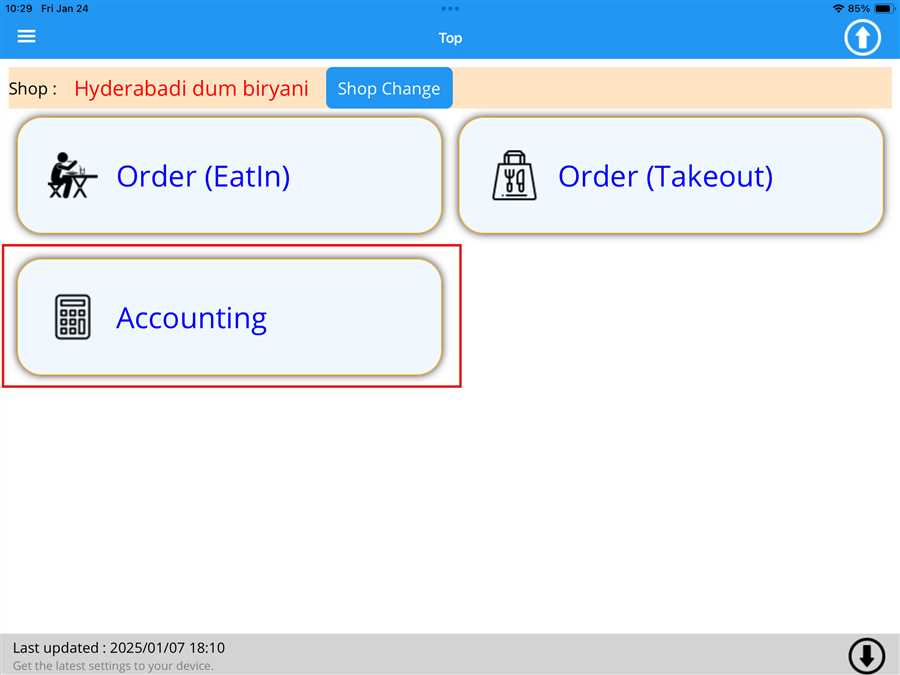
After pressing Accounting button a list button appears which contains the tables registered on the shop with respective order value(total ordered menu price) on those tables
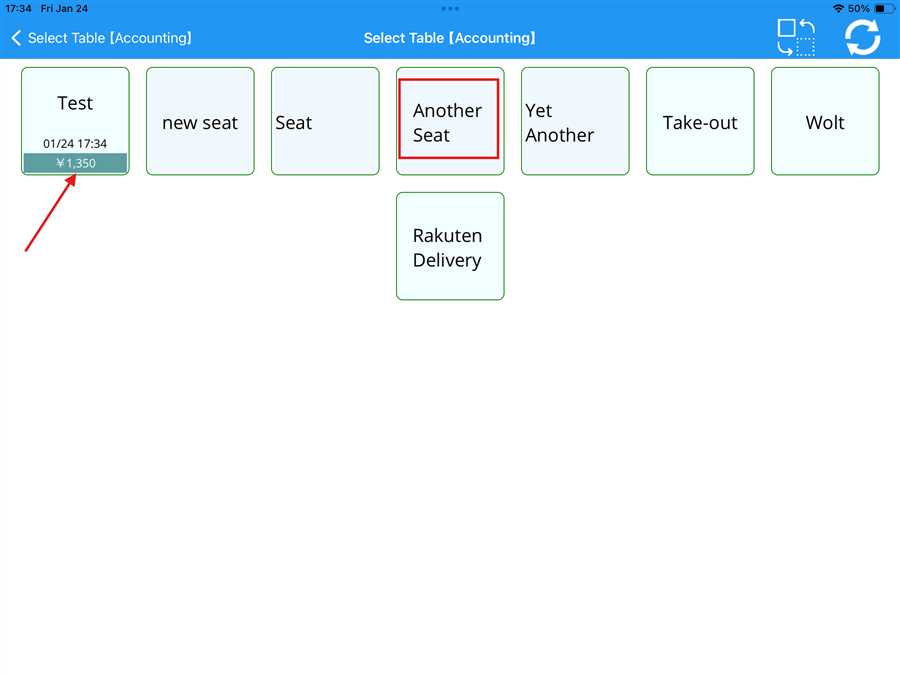
Here,Another Seat is the table registered to the shop shown by red box and ¥ 1,350 is the amount accumulated on the test table shown by the red arrow.
Applying Order Split
After selecting a table, the accounting page opens, allowing the user to view the ordered items along with their details, such as submenu information, quantity, and price, as shown in the picture below:
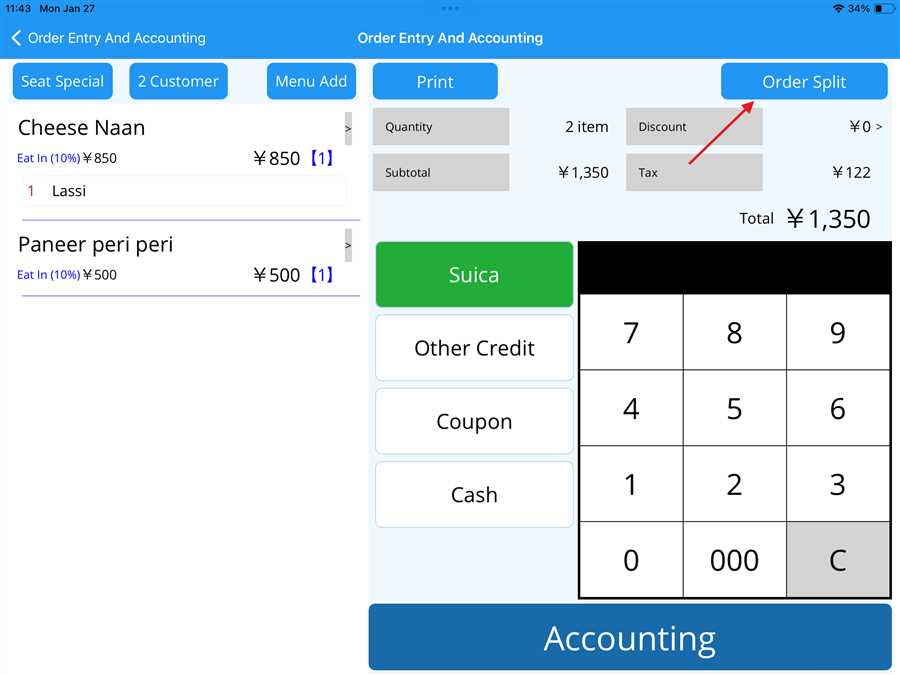
The user can split the order between different accounts by pressing the 'Order Split' button located at the top right of the screen, as indicated by the red arrow in the picture above. After pressing the 'Order Split' button, a new page opens displaying the ordered menu, as shown in the figure below
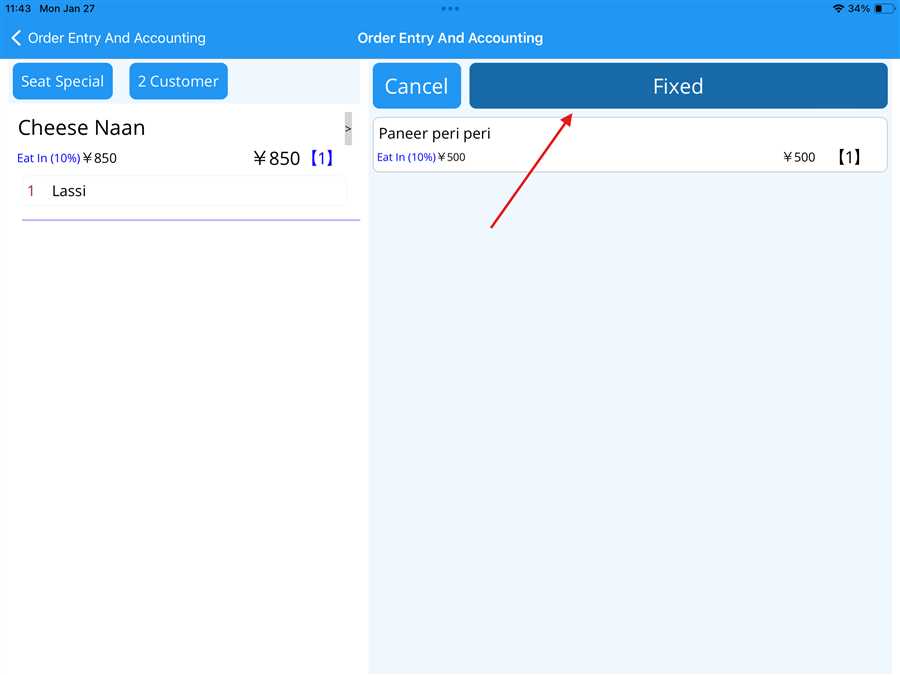
Here, the customer wants to pay for the Cheese Naan separately, so the user clicks on the menu item, which moves it to the left-hand side of the screen, as shown in the picture above. Finally, the user clicks the Fixed button (denoted by the red arrow) to confirm the action, splitting the order. This redirects the user to the accounting page, which now only contains the menu item selected for splitting
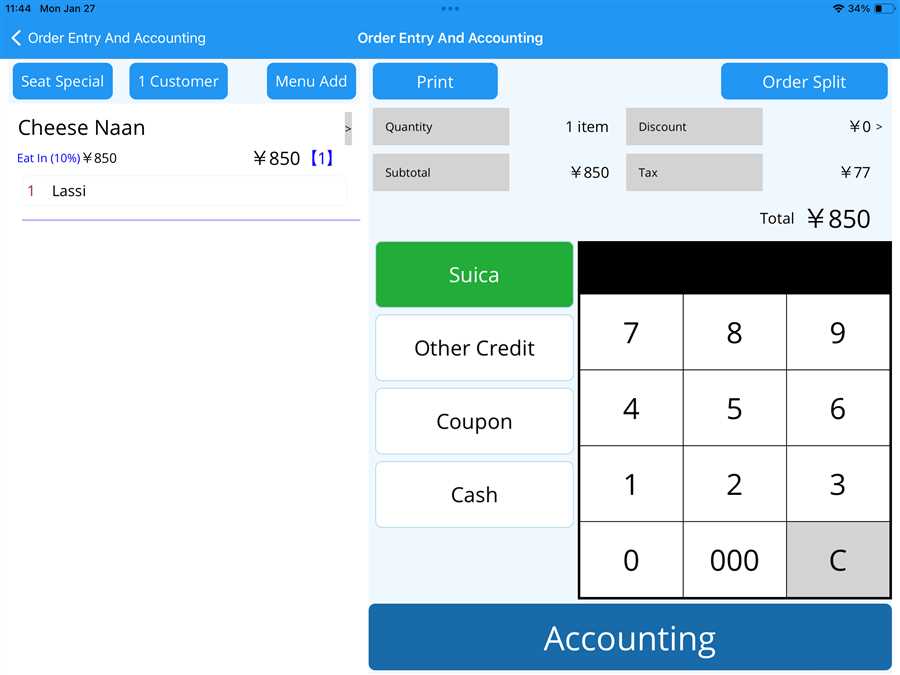
Now, accounting can be done for the selected order, as it only contains the split menu items. After completing the accounting, clicking on the same table displays the remaining items in the order, as shown in the figure below
Here, Paneer Pizza is the remaining menu item along with its respective price, and accounting can be done by following the steps accordingly.
Thus, the above procedure can be followed to split an order between different accounts with split payments
