Two-Factor Authentication(2FA) adds an extra layer of security to user accounts by requiring two forms of verification:
1. Your Password
2. OTP code sent to the email you have set
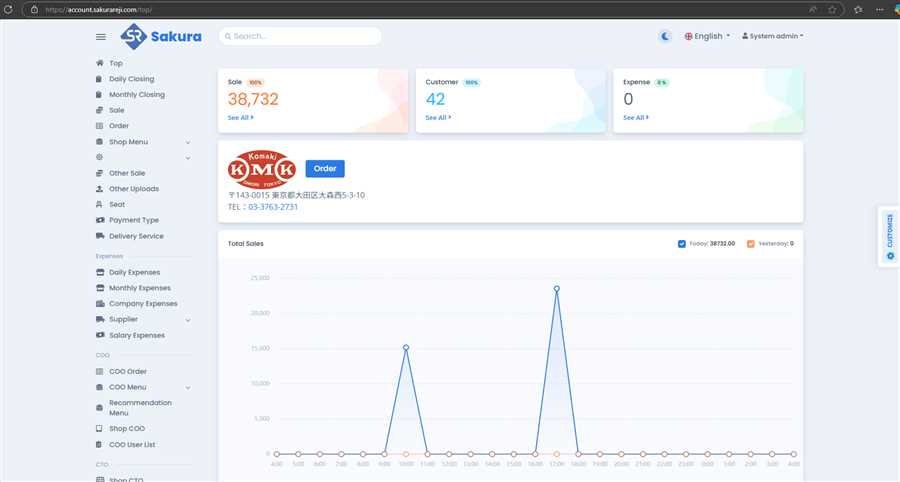
Enabling 2FA significantly reduces the risk of unauthorized access, even if a password is compromised. This guide walks users through enabling 2FA using email. For this, you have to login to your account first. After you have successfully logged in to POS web, you will be in the top page of the site.
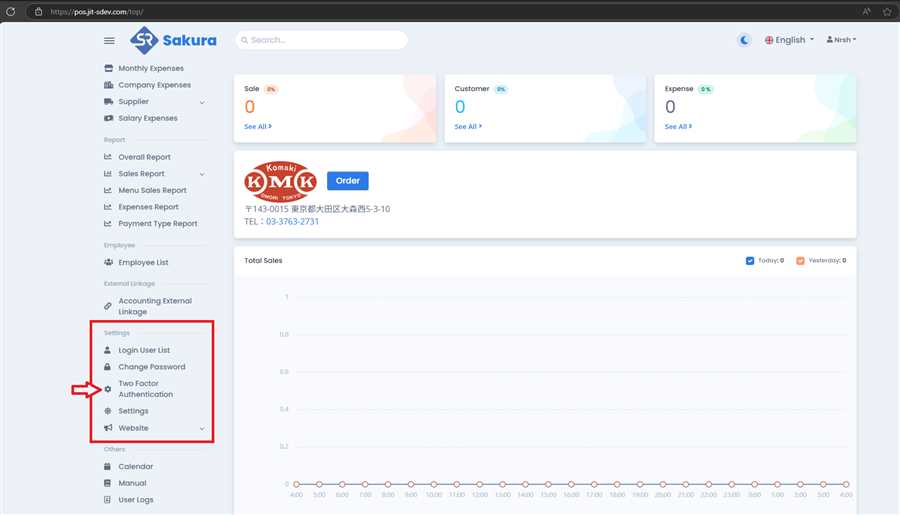
On the left side of page, there is a panel with lots of links. Scroll down to 'Settings' part and click on the Two Factor Authentication as shown in image below.
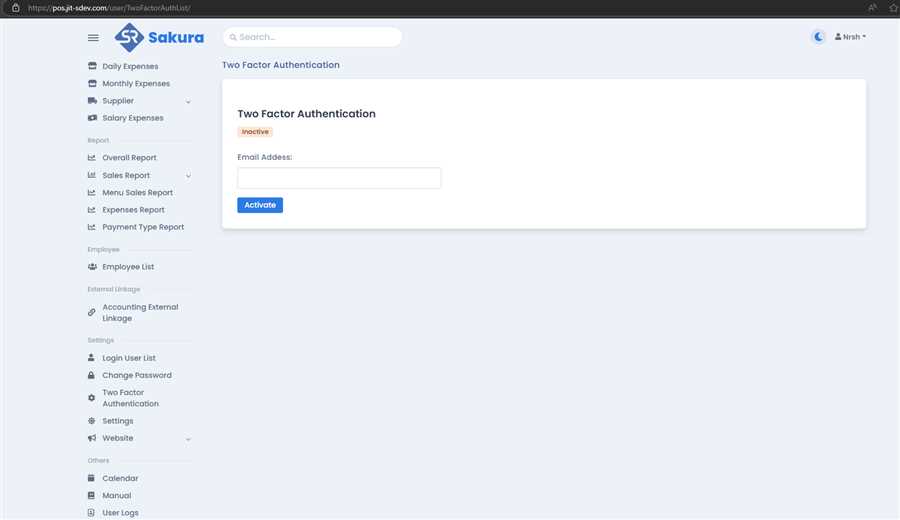
Then, the following form appears. As you can see in the image below, the Two Factor Authentication is 'Inactive' at the moment. You have to type in the mail address in the form where you want to receive the OTP
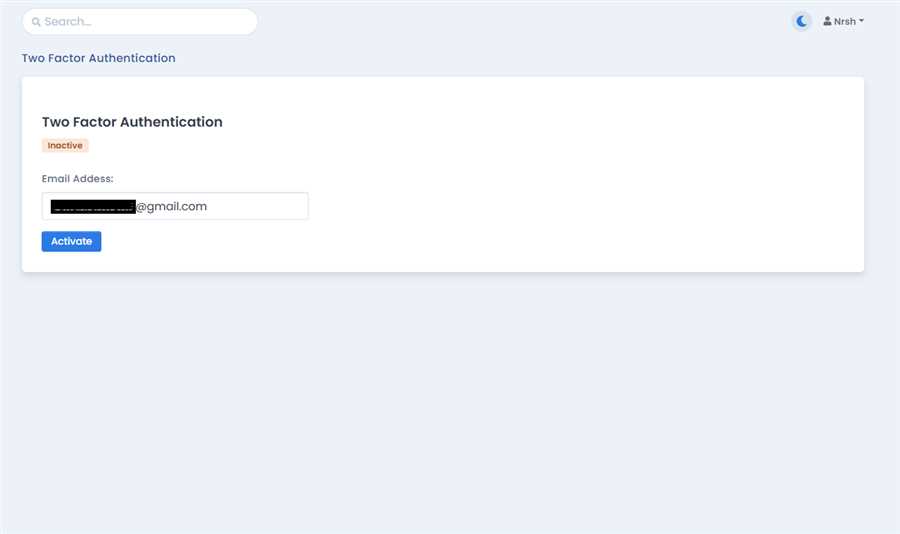
Fill in the email and click on Activate button.
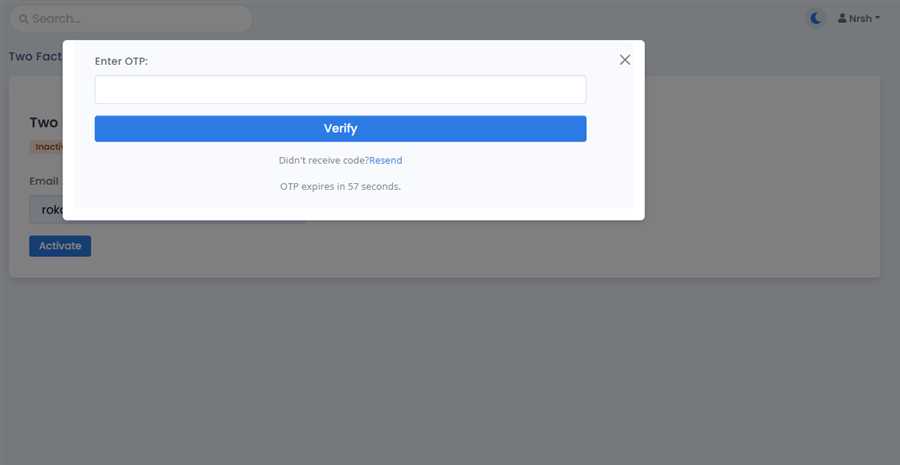
You will get a pop up to enter the OTP and verify. Check your email which you just entered in the form. You can click on the Resend link in case the OTP expires. After getting the OTP from the email and entering in the pop up text box, clik the Verify button.
You will get successful message as shown below when you successfully verify your email. You may get OTP expired if 1 minute time is passed after clicking Activate in the previous form where you entered email. You can just resend the OTP again to that email and enter it again in this case.
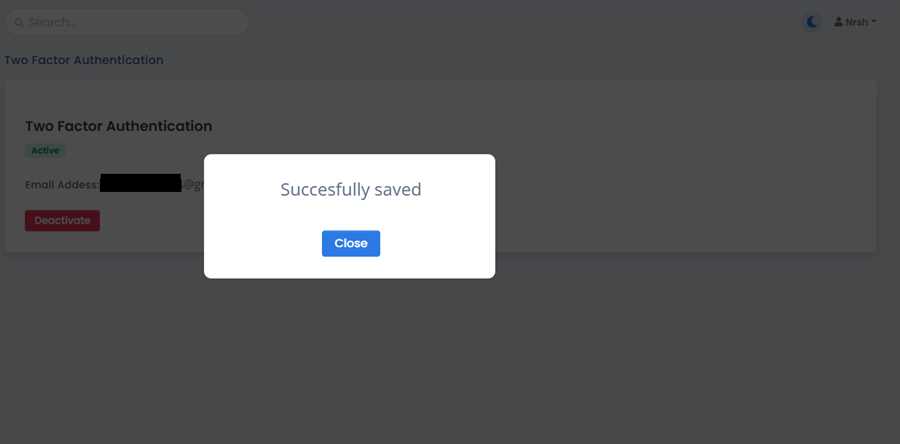
Click on the Close button on the success pop up. You see the previous Two Factor Authentication page. Now you can see the 'Active' status of the Two Factor Authentication. The email you entered also can be seen here.
NOTE: This is the email address where you will be receiving the OTP Code while you login.
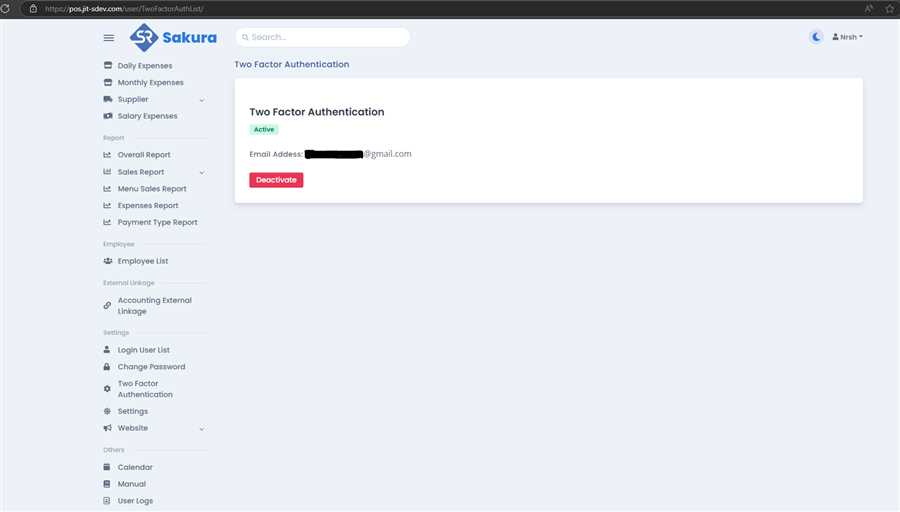
If you lose access to the authentication email, you can just click on the Deactivate and use another one of your mail to receive the OTP code.
