Why it is important to uploading Employee Documents ?
These following are the reasons behind the importance of uploading employee documents;
- Legal Compliance: Storing essential employee documents ensures compliance with labor laws and regulations.
- Verification: Helps in verifying the identity, qualifications, and work permits of employees.
- Centralized Record: Keeps all important records in one place for easy management and access.
- Audit and Reporting: Essential during audits or internal reviews for verifying employee credentials.
- Employee Benefits Management: Accurate documentation helps in managing benefits like insurance, tax filings, and social security.
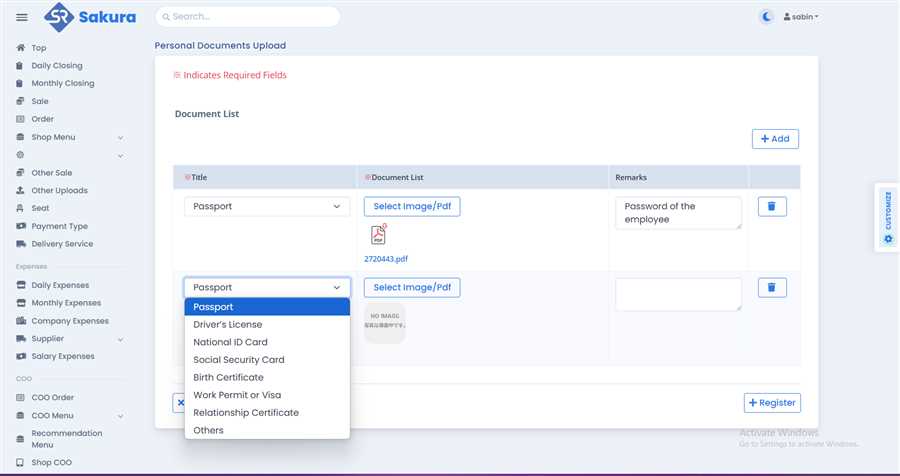
Steps to Register Employee Documents (Analyzing the Image):
-
Navigate to the Document Upload Page:
- Log in to your Sakura POS account.
- From the left sidebar, select the "Employe List" section.
- Then you will see the differe employee list, from that list select one and click on action button at the last column of that row,
- Then click on "Document Upload" section to open the form as shown in figure above.
-
Select Document Type:
- Under the "Title" dropdown, select the type of document you want to upload, such as Passport, Driver’s License, National ID Card, Social Security Card, Birth Certificate, Work permit or visa, relationship certificate , others etc.
-
Upload the Document:
- Click on the "Select Image/PDF" button to upload the document file.
- Choose the relevant file (image or PDF format) from your computer.
- According to the Document type Select the Tab on the top as below;
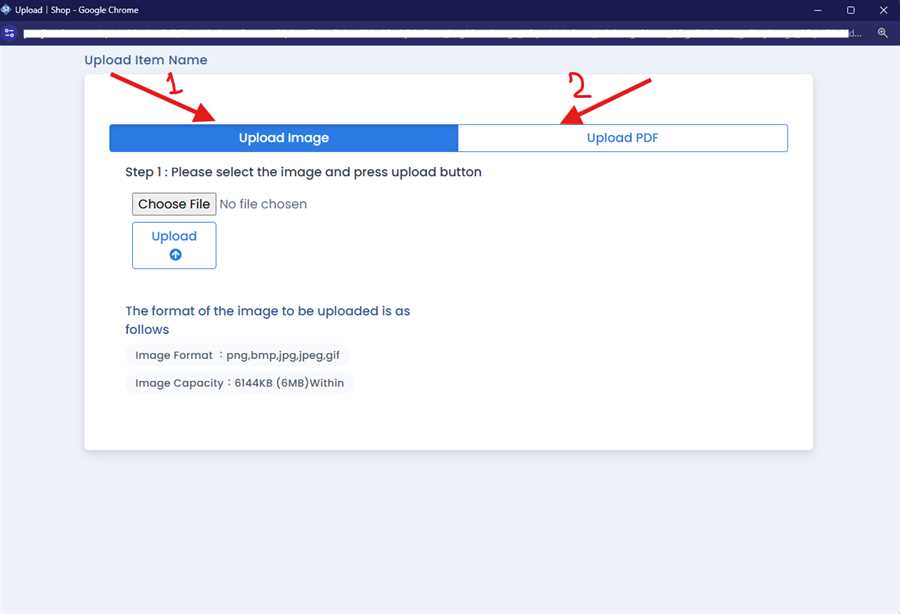
① If you are Uploading image type of documents then choose the first tab
l click on choose files, to upload the image from your device
l Select the required image and press open from your device.
l Click on upload button after selecting images
Note: The Format of the image to be uploaded in as follows
Image Format: png, bmp, jpg, jpeg, gif
Image Capacity: 6144KB (6MB) with in
② If you are Uploading pdf documents then Click on the Upload PDF section (Tab Second Section),
l Click on the Choose file from which pdf type of file is uploaded
l After uploading file, then Click on Upload Button
Note: The Formate of the file should be in .pdf extension
Pdf capacity:20480KB (20MB)within
-
Add Remarks (Optional):
- In the "Remarks" field, add any specific notes about the document (e.g., "Password of the employee").
-
Add More Documents:
- If you want to upload additional documents, click the "+Add" button.
- Repeat the process of selecting a document type, uploading the file, and adding remarks.
-
Register the Documents:
- Once all documents are added and verified, click the "+Register" button to save the uploaded documents in the system.
By following these steps, you can successfully register the employee documents in the system for record-keeping and compliance purposes.
