Firstly, you will see the seat Section in the left side bar,
① Click the seat section, from the left side bar of the POS web Page, then you will see a list of seats that you registered for your shop
② Foreach seats that has CTO access, there will be QR Column, Click on that QR to See the information and Seat QR of that respective seat with their seat name.
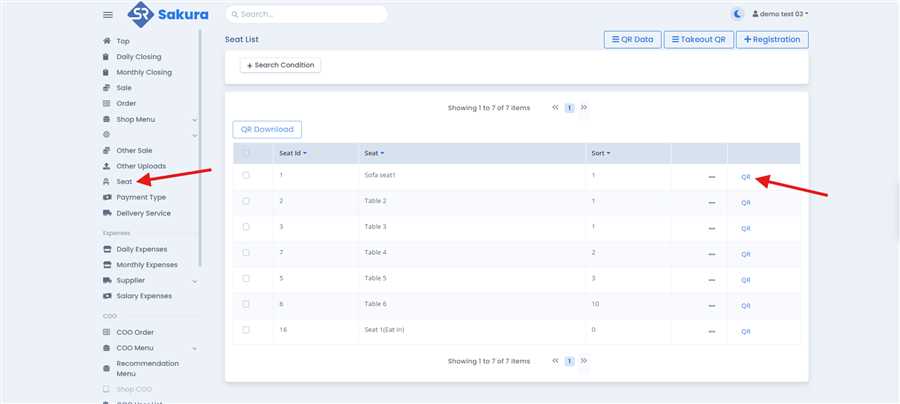
③ You can scan that QR code from your mobile to take an order from their respective seats.
Figure below show the sample of QR Code after clicking on the seat QR , in this figure you can see the top description with small font size and the QR displayed with size large, seat name is Displayed below the QR, whereas the bottom description is displayed below the Seat QR and name of the seats, You can clearly see that the size of the top and bottom description is different, you can customize it accordingly.
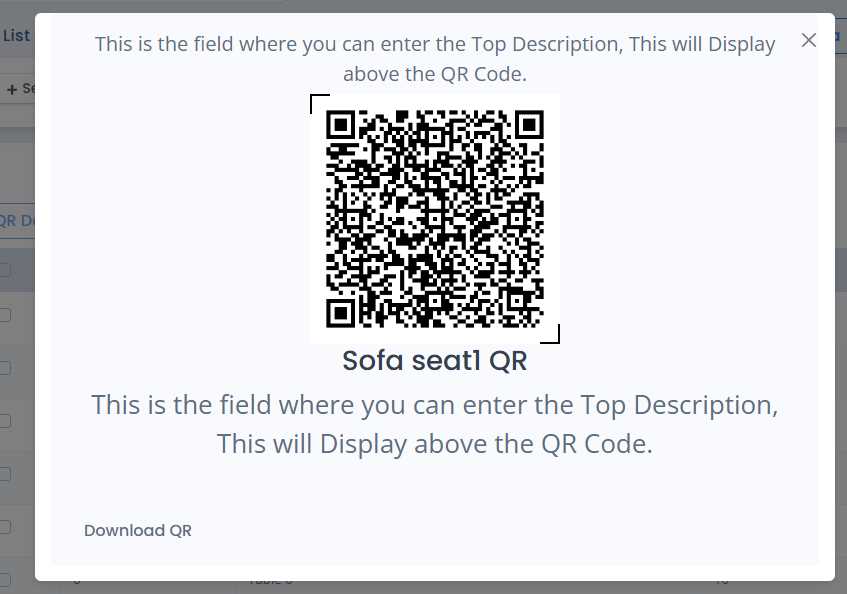
In the above figure you can see Download QR button on clicking that you can download that in your device then you can print and attached with the respective seats so that customer will order the food with their own device and helps to make a order effective and efficiency.
