On your Sakura POS Webpage, after login to your account, you can see the seat section on the left navbar, click on that navbar then you will see the list of seats with their respective QR. Just above the Seats Table threre is QR Download Button which will be disable i.e. you can not clicked on that buton initially. Once you select the Seat from the first column then the QR Download button will be active and clickable.
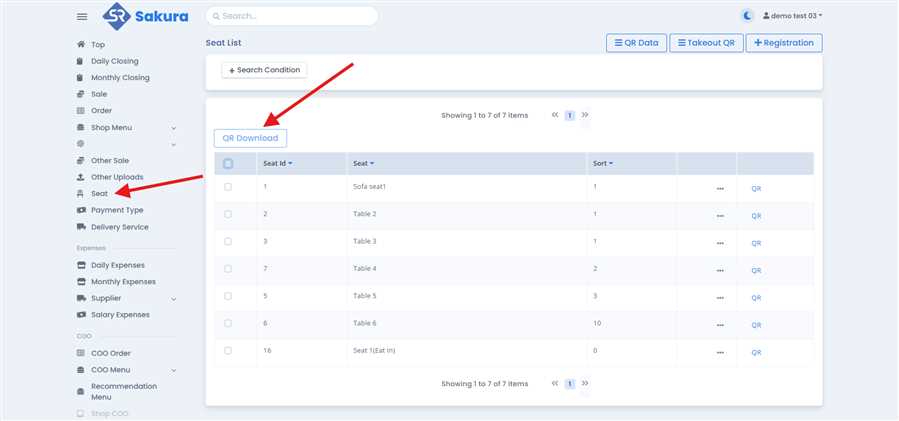
Steps to Download QR Code Collectively:
① Click on the seat section of the Left Navbar
② Then select the seats of which you want to download the QR of seats, i.e. you can check the checkbox of seats then click on the Download QR button after selecting the desire seats.
③ Then the selected QR information will be downloaded in single file you can then use as per your needs.
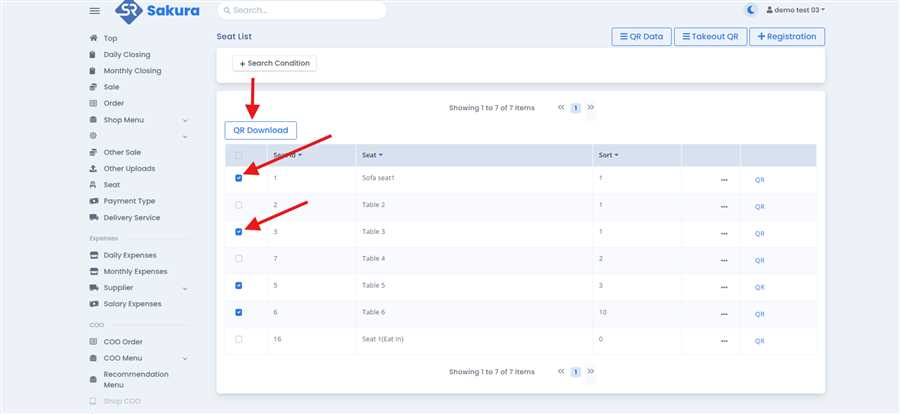
Note: if you want to download the QR information of all the seats you can select the Top Checkbox and then click on the QR Download button.
Once downloaded the all QR pdf it contains all the selected QR informations in single page (A4) as shown below;
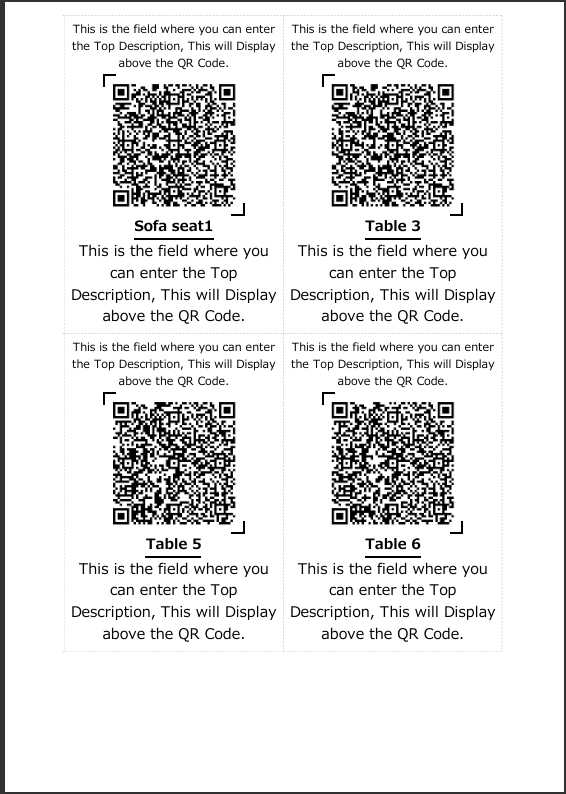
The different seats informations are distinct with the doted line then you can cut and use it in seperate for their respective tables.
