Firstly, you will see the seat Section in the left side bar,
① Click the seat section, from the left side bar of the POS web Page, then you will see a list of seats that you registered for your shop
② You will find the TakeOut QR Button in the top of the page , Click on that button and download the QR of takeouts menus, through which customer can order the takeout menus.
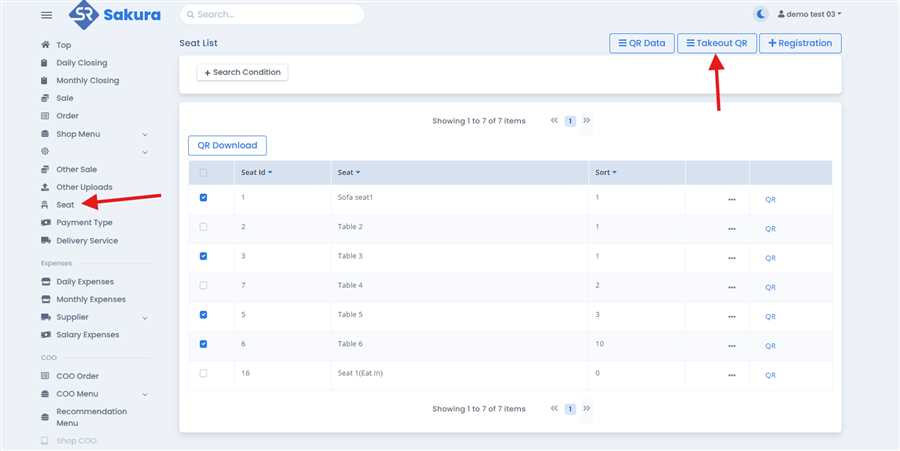
Note: Only Takeout menus will be visible after scanning the TakeOut QR. This make a effective and effortless order to the Shop/Resturant.
After Clicking on that button QR with shops information will be displayed as shown in figure with the seat name as takeout. Now you can download that QR by pressing the Download QR from that page as shown in figure.
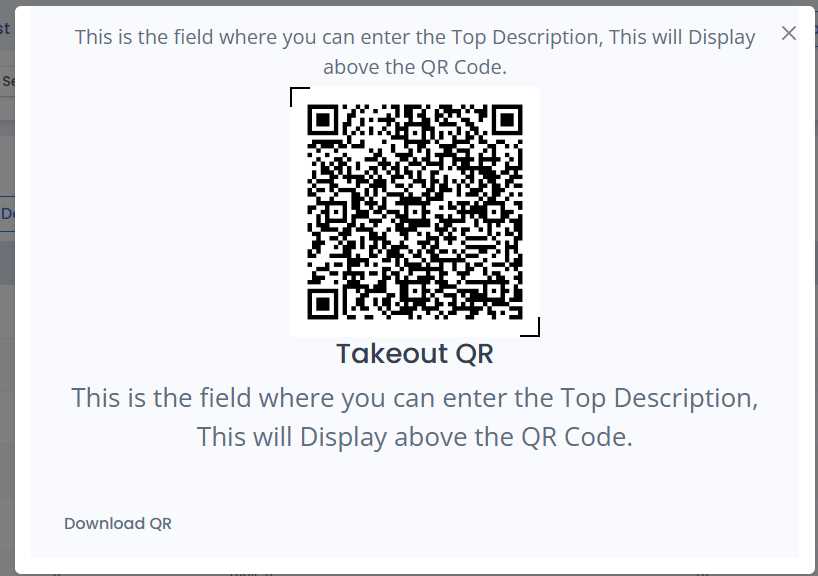
In this page there is Top Description with what the shop want to display then it has QR with he Takeout QR name and Then it has Bottom description. Once the QR data is setup by the shop it will display the same data in Takeout QR also.
There is Download QR buton, after clicking on that button the TakeOut QR will be downloaded. In the downloaded file (pdf) of name takeout the A4 paper or page will be filled with the same TakeOut QR. With the doted lines which will distinct one from another then you can cut it and attached on your shop wherever you like to.
