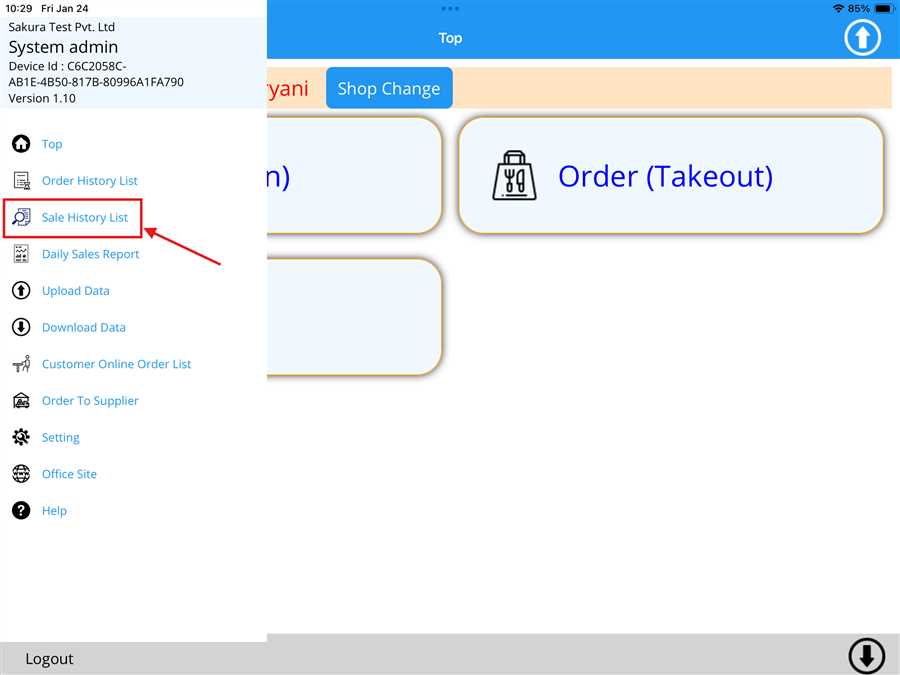
The user can open the Sale History List by navigating to the sidebar of the POS app. To access the sidebar, press the  icon located at the top left of the home page. Then, click on the Sale History List button (denoted by the red arrow), as shown in the picture below.
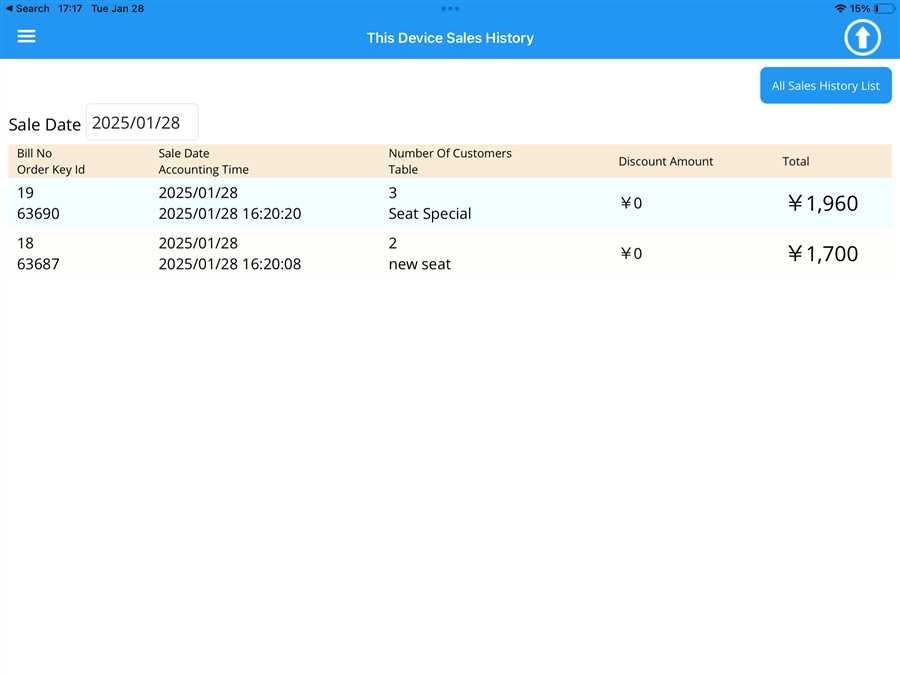
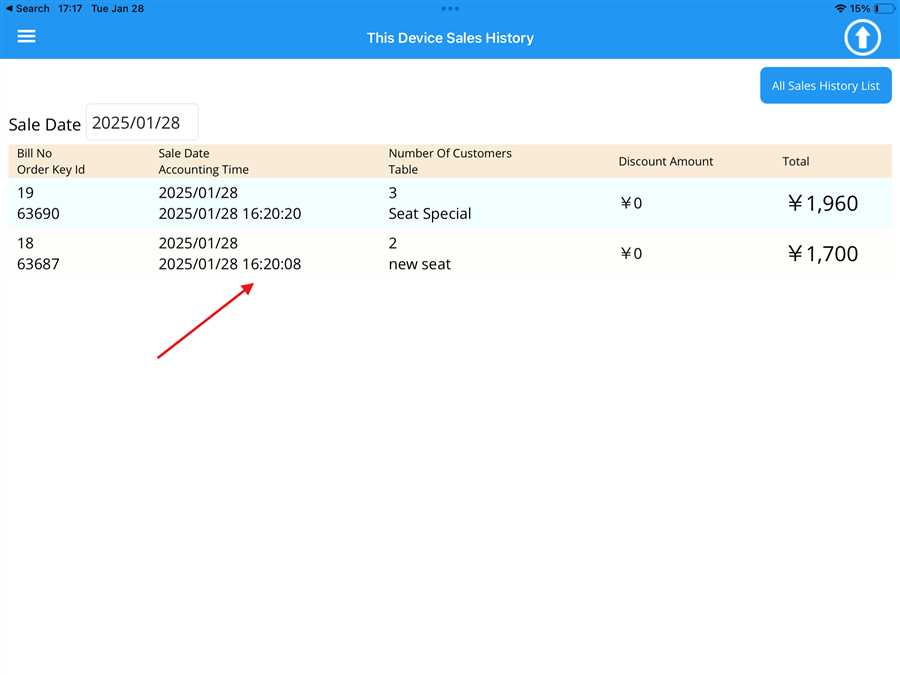
After clicking on the button, a page opens up. This page displays a list of sale placed through the POS app, including details such as the Total, Number of Customers, Discount Time, Sale Date Accounting Time, and Bill ID.
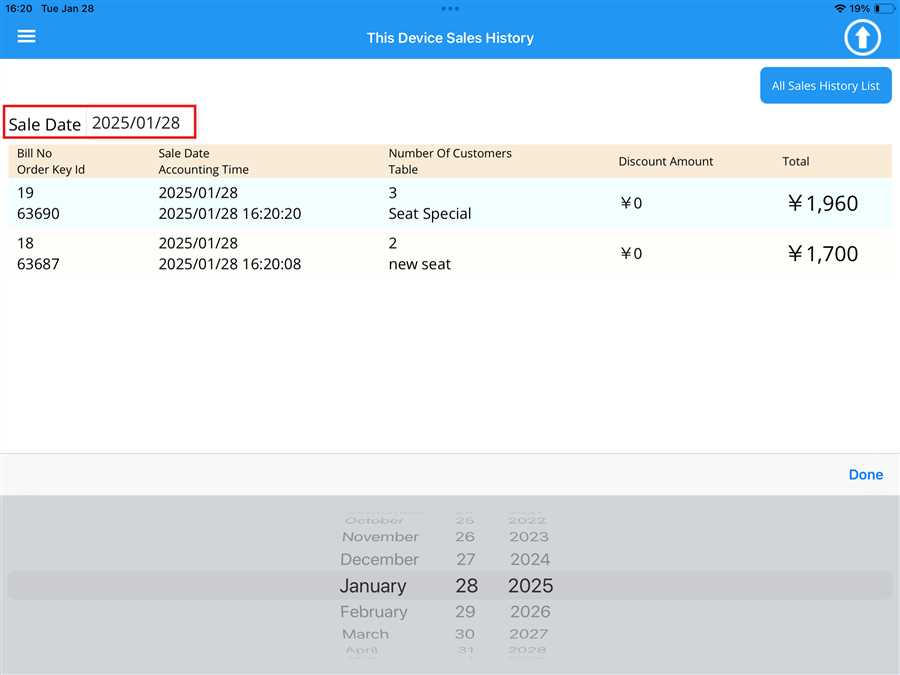
The user can also select or view data from a different date by clicking on the Sale Date (denoted by the red box), as shown in the picture. After clicking on the date, a date selection section appears, allowing the user to view data for the selected date.
By pressing "All Sale History List", the user is redirected to the POS web, where they can view the complete Sale History through POS web.
The user can also view individual order details by clicking on a specific order, as indicated by the red arrow.
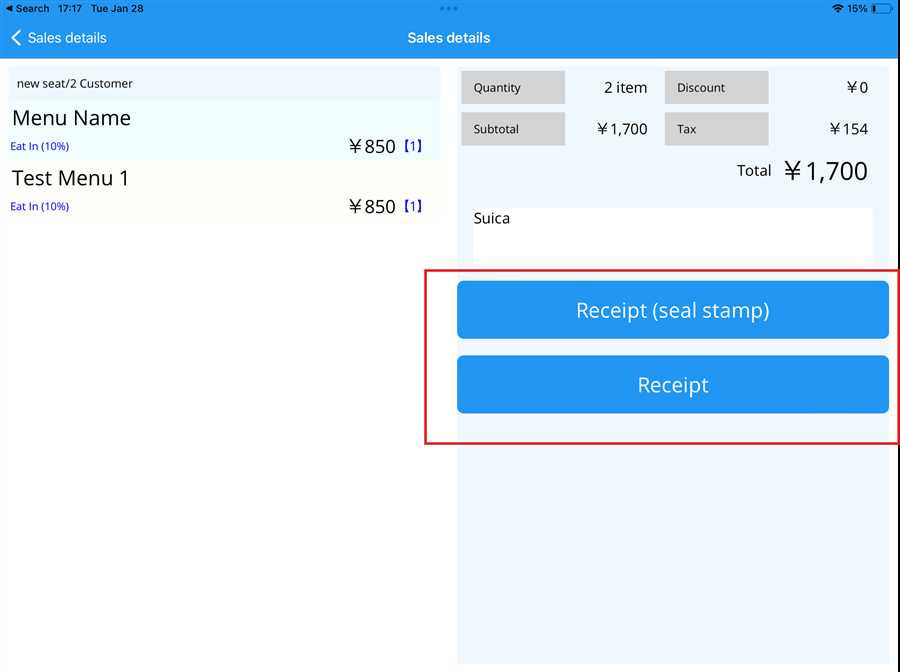
By clicking on an individual order, a page opens that contains the list of menu items in that sale. The user can print the specific sale by clicking on the print button shown in figure below: