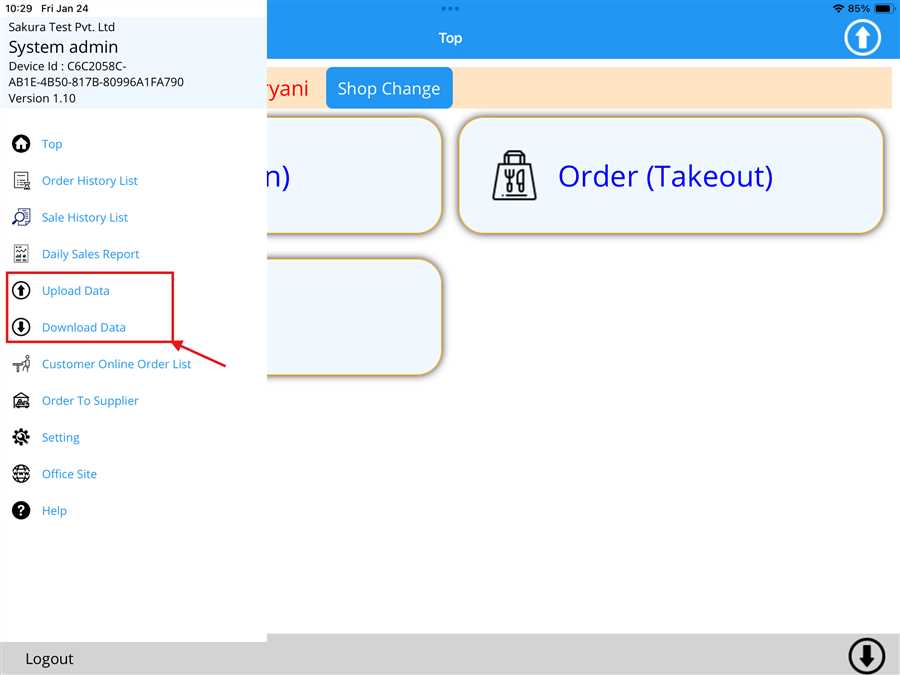
The user can open the Upload/Download data list by navigating to the sidebar of the POS app.To access the sidebar, press the  icon located at the top left of the home page.Then, click on Upload Data / Download Data (denoted by red arrow), as shown in the picture below.
Upload Data
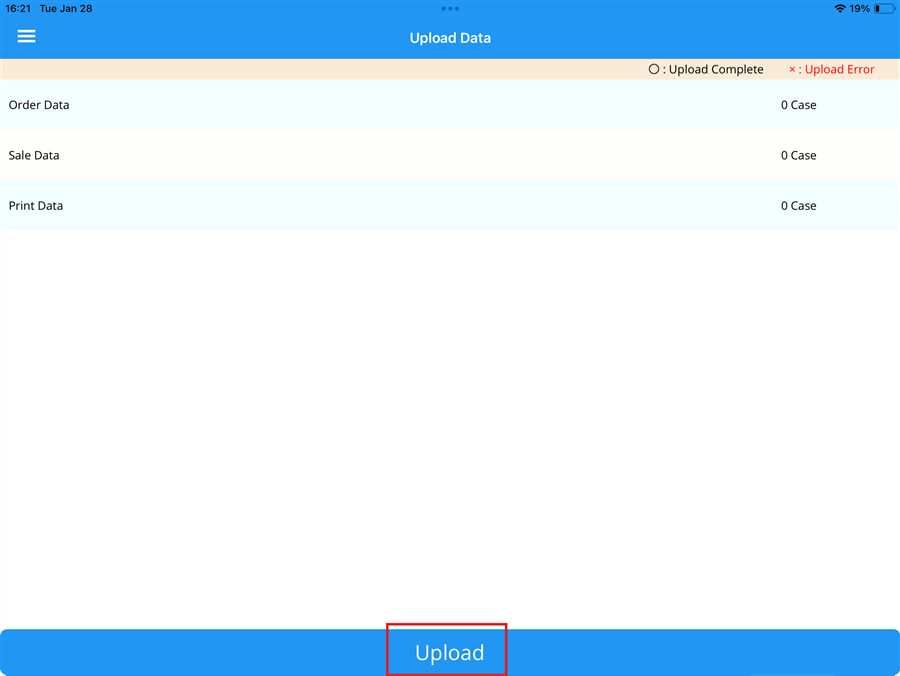
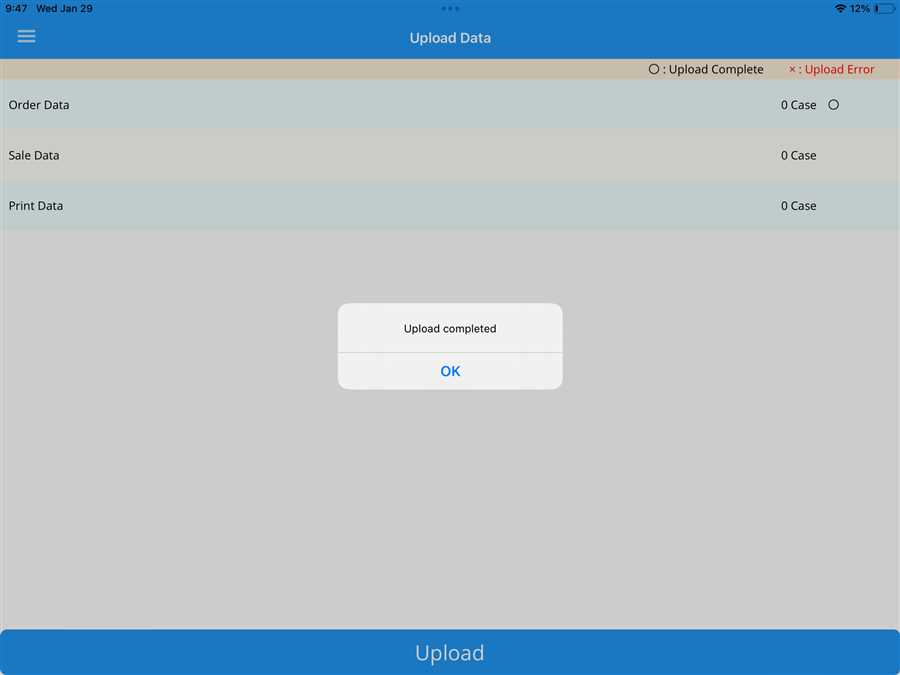
The POS app can operate offline. When going back online, the offline data can be synced with the server(POS web) through the Upload Data option. After clicking on Upload Data, a page opens where data such as order data, sales data, and print data is automatically synced with the server. The data can also be manually synced by pressing the Upload button, as shown in the picture below.
Download Data
When there are changes in data such as menu, printer settings, shop data, etc. in the POS web, the updates are automatically synced with the POS app. However, automatic syncing can be suspended through the settings in the POS web (explained separately).
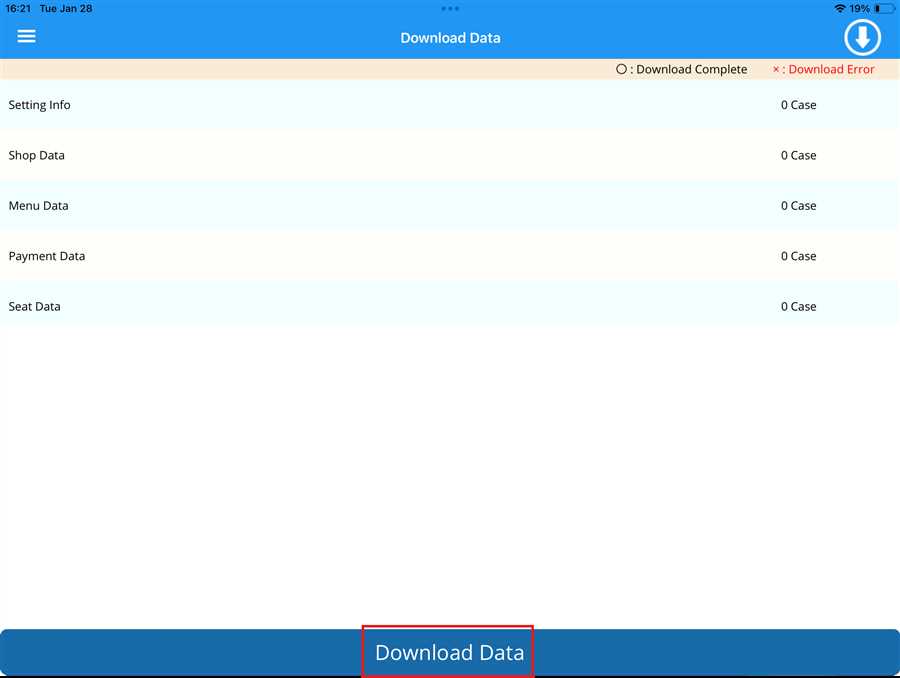
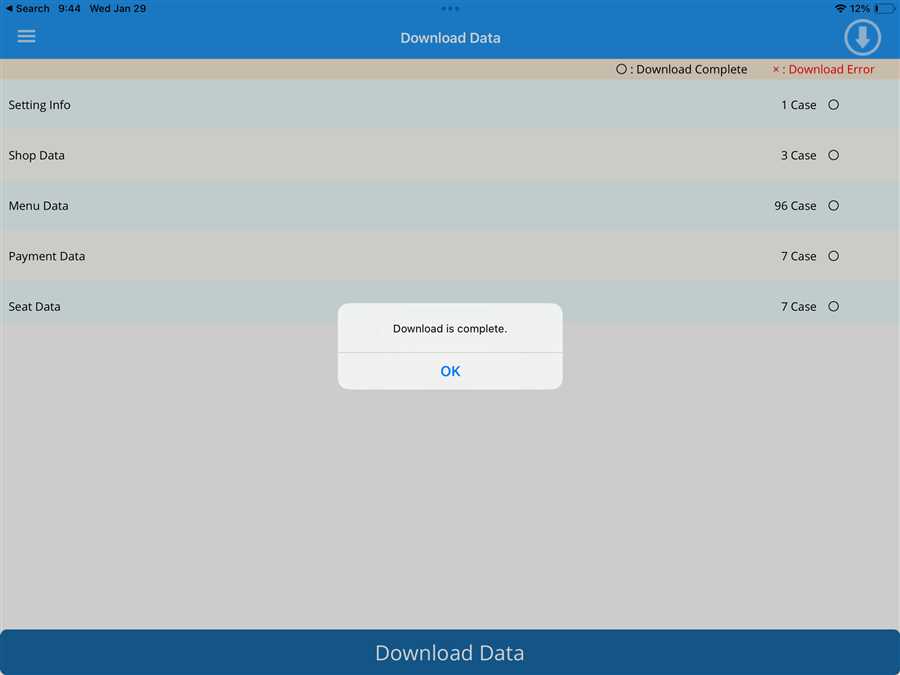
The user can also manually sync data from the POS web to the POS app by selecting Download Data. After clicking on Download Data, a page opens where data such as settings info, shop data, menu data, and seat data is automatically synced with the server. The data can also be manually synced by pressing the Download button and  icon, as shown in the picture below.