Logo
  • Getting Started
  • Categories
    • Initial Setting
    • Registration
    • Expenses
    • Sale
    • Order
    • Daily Closing
    • Accounting
    • COO (Customer Online Order)
    • CTO (Customer Tablet Order)
    • Printer
    • Monthly Closing
    • Other Uploads
    • Customer Display
    • Seats Settings
    • Features of POS App
  • Contact Us
  • English jpnflg
    engflg English engflg 日本語 engflg नेपाली
  1. Categories
  2. Daily Closing
  3. Update Daily Closing Details
  4. How can we Update Closing Details?

How can we Update Closing Details?


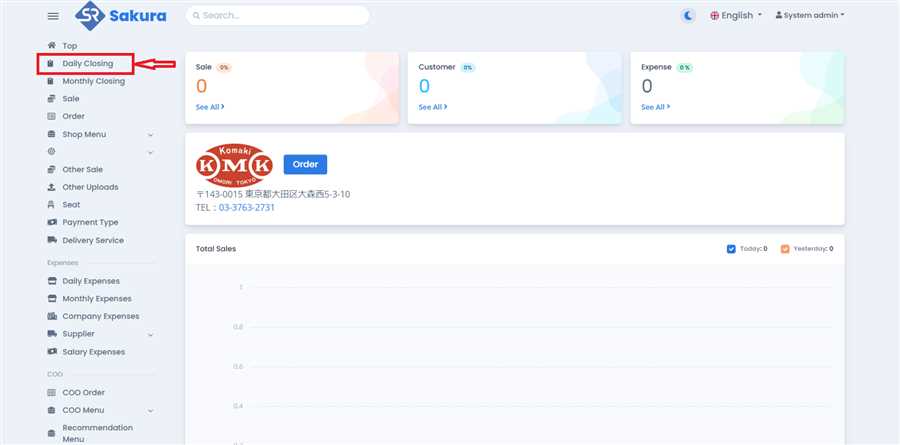
Open Daily Closing Page

Click 'Daily Closing' in main navigation bar to open Daily Closing page/list.
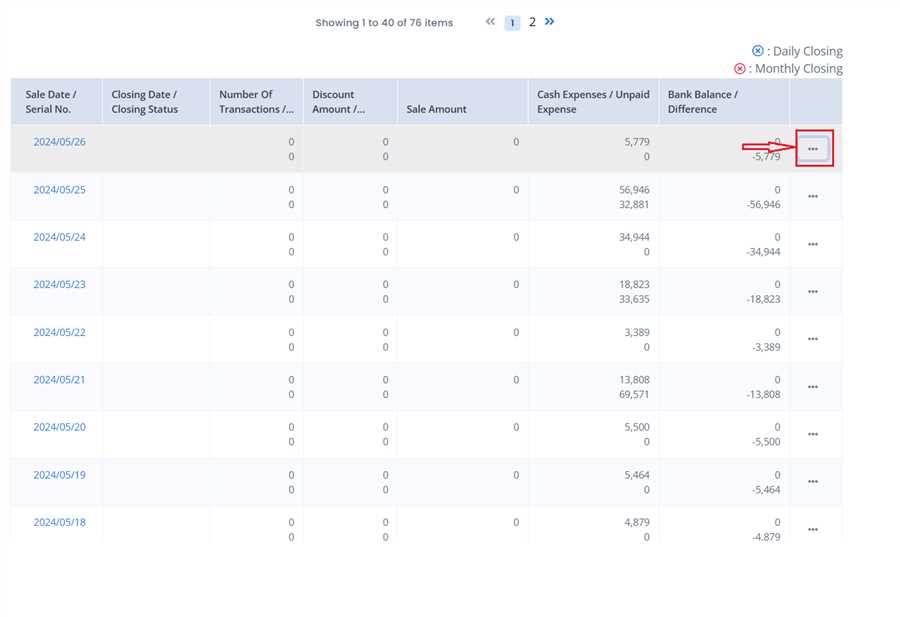
Click on options

Click the Options Icon(...) of the row you want to update.
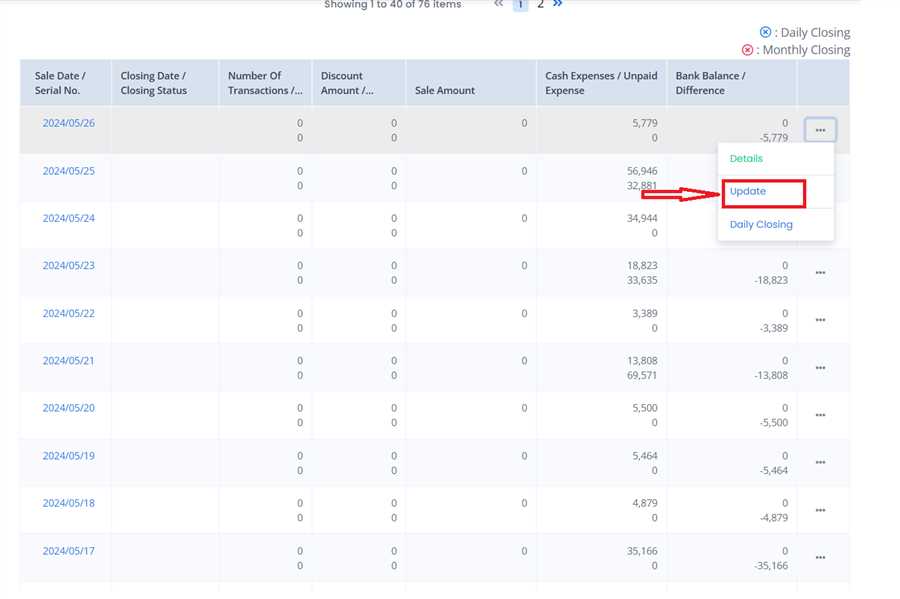
Click Update Button

Click on Update Button as shown in the image. Closing form will appear.
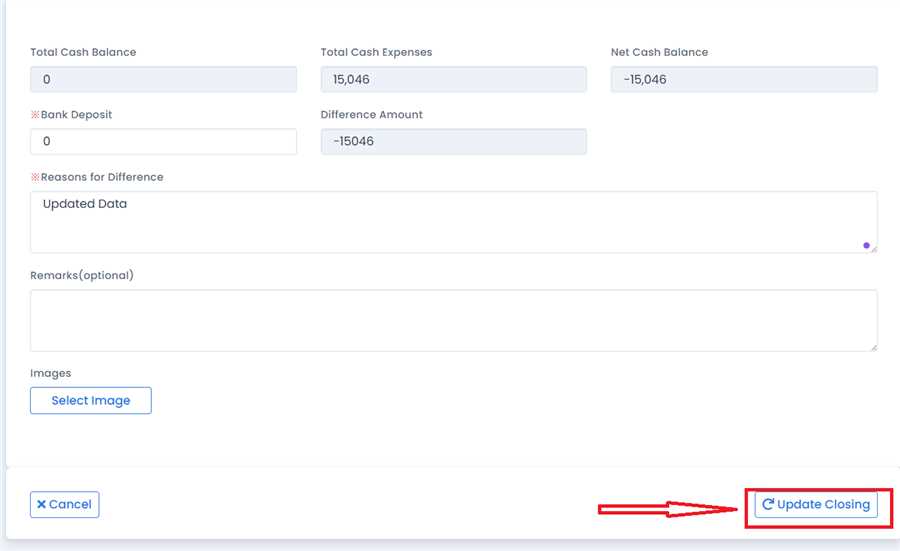
Submit Your Updates.

Fill up the form as required and click on 'Update Closing' button on the bottom right corner to submit/save your update. Point to be noted: The most important field in this form is Bank Deposit Field. In this field you should input the daily amount deposited to bank. If the Bank deposit differs from Net Cash Balance, you must input the reason for difference.

Categories
Initial Setting
Registration
Expenses
Sale
Order
Daily Closing
Accounting
COO (Customer Online Order)
CTO (Customer Tablet Order)
Printer
Monthly Closing
Other Uploads
Customer Display
Seats Settings
Features of POS App
FAQ

Namaste International LLC

ナマステ・インターナショナル合同会社

Products
  • POS (Point On Sale)
    • Sakura POS
    • Sakura Reji
    • Himal POS
  • Order Management System
  • CTO (Customer Table Order)
  • Ryoriten (Customer Online Order)
Information
  • FAQ
  • Getting Started
  • Inquiry
  • Privacy Policy
Contact Us
  • 2-21-22 Machiya, Arakawa-ku, Tokyo 116-0001
  • (+81) 080 4080 2044
  • jpnflg English
    engflg English engflg 日本語 engflg नेपाली
© 2025 Namaste International LLC. All Right Reserved.
×