Logo
  • Getting Started
  • Categories
    • Initial Setting
    • Registration
    • Expenses
    • Sale
    • Order
    • Daily Closing
    • Accounting
    • COO (Customer Online Order)
    • CTO (Customer Tablet Order)
    • Printer
    • Monthly Closing
    • Other Uploads
    • Customer Display
    • Seats Settings
    • Features of POS App
  • Contact Us
  • English jpnflg
    engflg English engflg 日本語 engflg नेपाली
  1. Categories
  2. Initial Setting
  3. Forgot Password
  4. How to reset password ?

How to reset password ?


1. Open your preferred browser(Chrome, Firefox, Safari, etc.) and go to the URL "https://account.sakurareji.com".
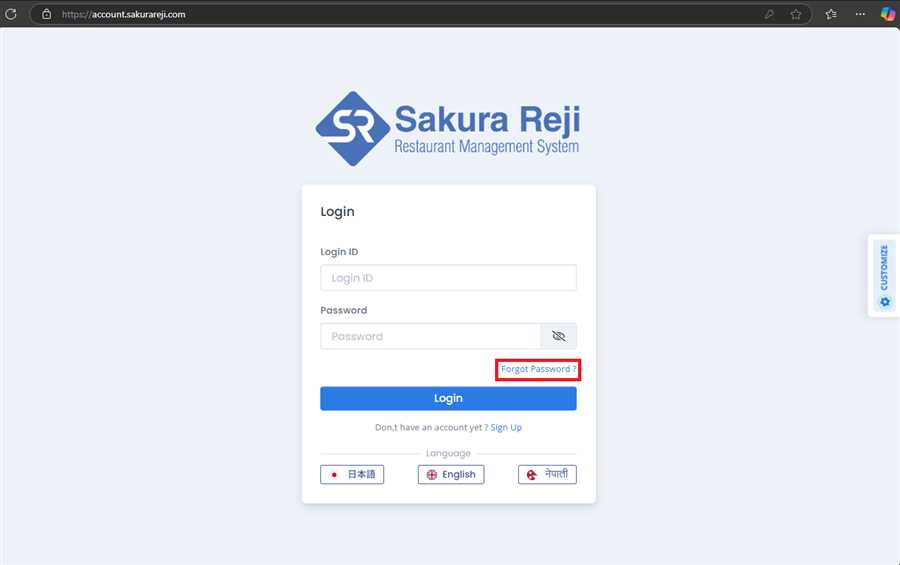
2. Once the login page is loaded, click on the Forgot Password? link. The following page appears:
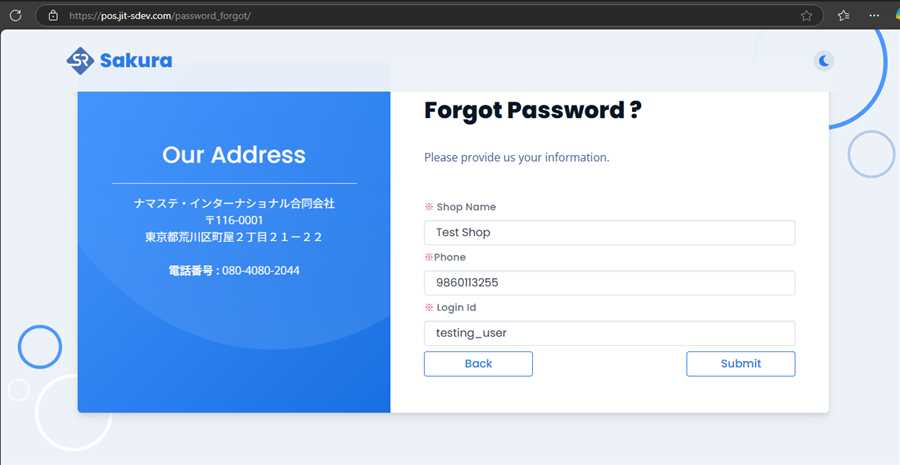
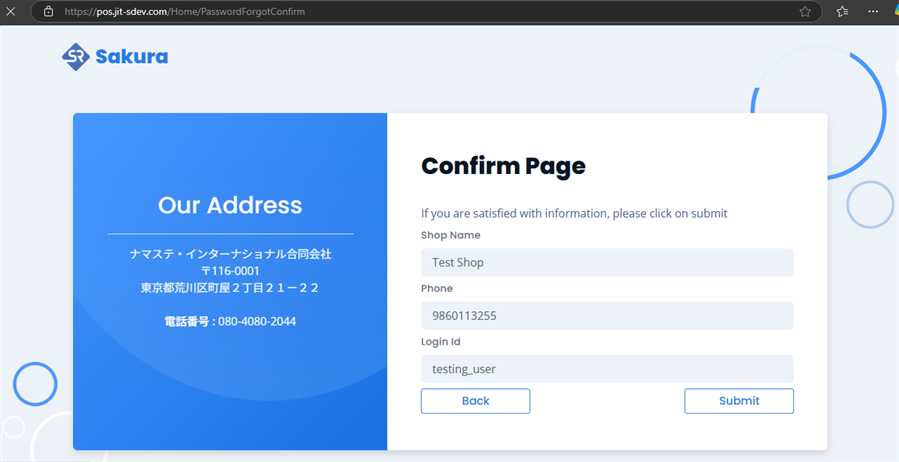
3. Fill in your information in the form and click on the Submit button. A confirmation page appears as seen in the image below. Check the data you have entered and click on Submit button. Click on the Back button if you need to modify the data again.
4. After submission of your form, you will see a completion message as follows:
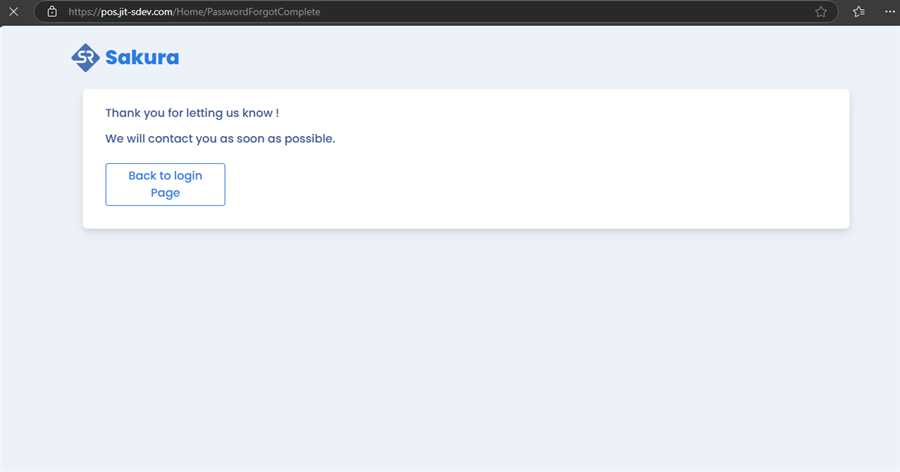
After submitting your request for resetting password, this will take some time and our team will email you with your new password.

Categories
Initial Setting
Registration
Expenses
Sale
Order
Daily Closing
Accounting
COO (Customer Online Order)
CTO (Customer Tablet Order)
Printer
Monthly Closing
Other Uploads
Customer Display
Seats Settings
Features of POS App
FAQ

Namaste International LLC

ナマステ・インターナショナル合同会社

Products
  • POS (Point On Sale)
    • Sakura POS
    • Sakura Reji
    • Himal POS
  • Order Management System
  • CTO (Customer Table Order)
  • Ryoriten (Customer Online Order)
Information
  • FAQ
  • Getting Started
  • Inquiry
  • Privacy Policy
Contact Us
  • 2-21-22 Machiya, Arakawa-ku, Tokyo 116-0001
  • (+81) 080 4080 2044
  • jpnflg English
    engflg English engflg 日本語 engflg नेपाली
© 2025 Namaste International LLC. All Right Reserved.
×