How to Connect the Printer(CITIZEN Model:CT-257)
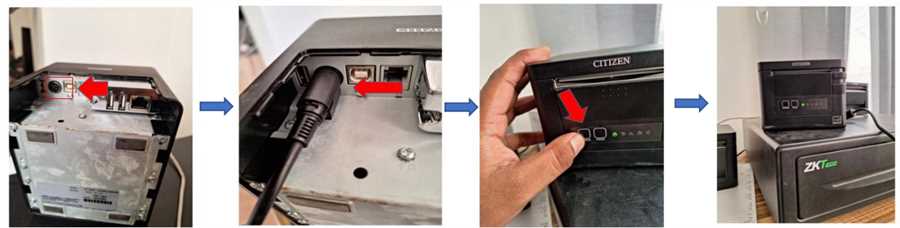
Connect Power
Refer to image and follow the instruction to connect power to the printer and turn it on.
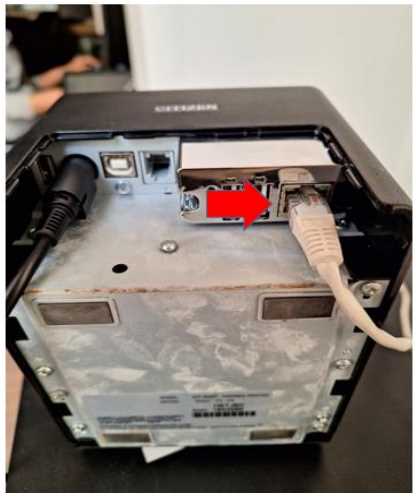
Connect Network Cable
Connect the printer to you network as shown in the image. Join the ethernet cable from your router to the printer.
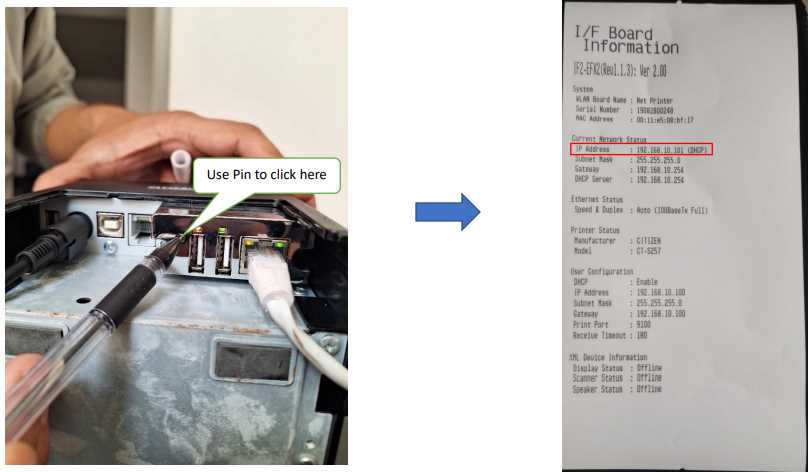
Get the printer's IP address
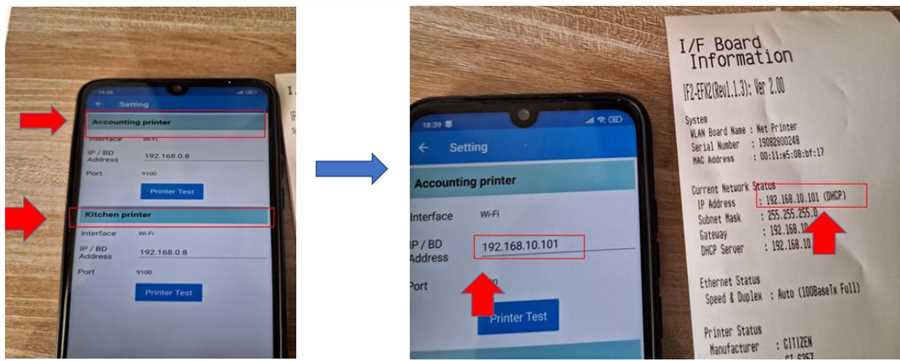
As shown in the image, get the slip with printer network details. The highlighted part is the IP address of the printer on your network. *WARNING*: Please click the button on the back of the printer only once. Do not click for a long time. This will reset the printer settings.
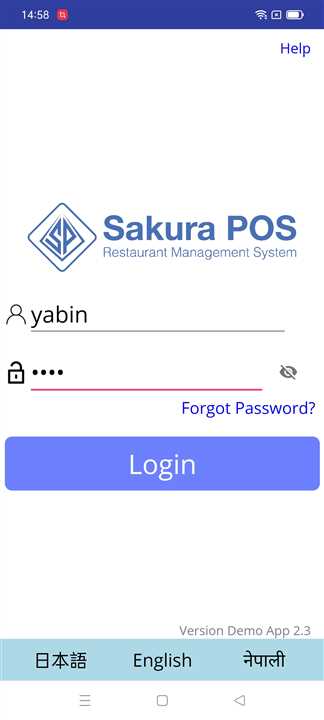
Login to POS App
Open the POS app in your handheld device and login.
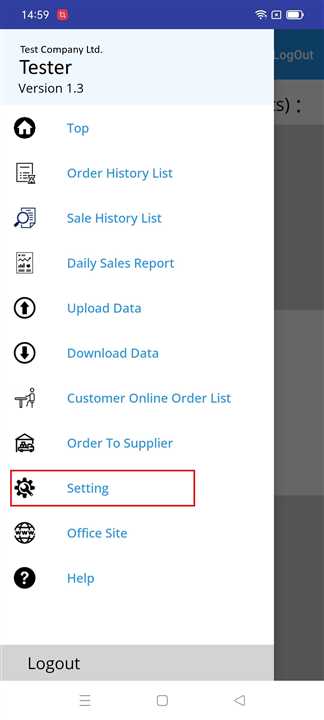
Goto Setting
Slide from the left edge of your device to open the side bar or just click on button on top left of the app to get the sidebar.
Open Printer Setting
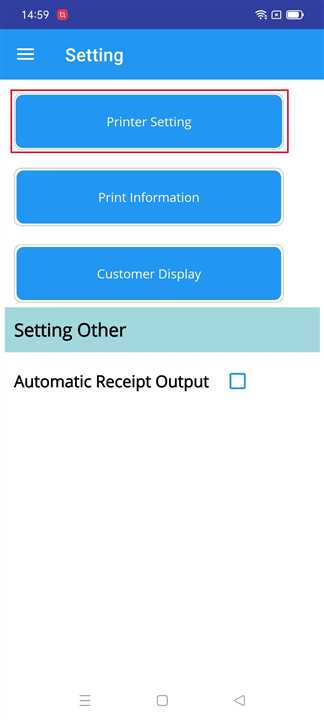
Click on Printer Setting button when the setting page is shown.
Set IP Address
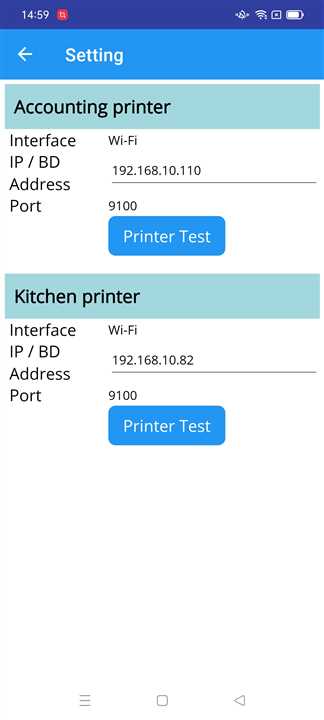
When the printer setting page appears, a list of printers that are setup for your shop is shown. Fill in the IP address box with the IP address of the printer you want and click on Printer Test button.
IP Address Set Reference
Refer to the image to verify the IP setting process. #Note: The printer IP is in the printed slip that was ejected by the printer earlier in above steps.
IP Setting Complete
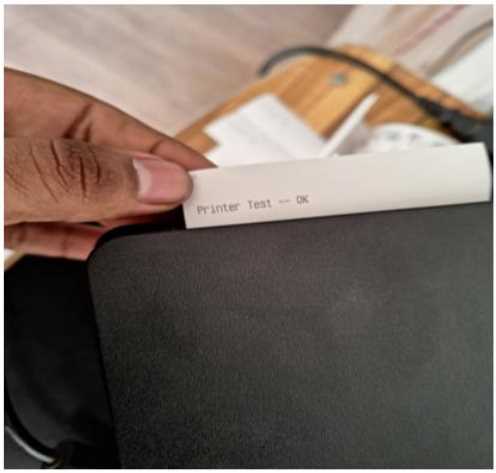
After clicking test, a slip of paper is ejected by the printer with message "Printer test --OK". Congratulations your printer has been successfully setup for your shop.
Further Inquiries
Please refer to the youtube link attached if there is any problem. This video gives complete instruction to set up printer.
